
This section explains how to add players to Score Controller and start the match once setup is complete.
Adding players in advance allows faster selection during scoring and ensures accurate scorecards.
Overview #
From this section, you can:
- Add player names to the app
- Build a reusable player list
- Quickly assign batsmen during scoring
- Proceed to start the match
Adding players is optional, but strongly recommended.
Add New Player #
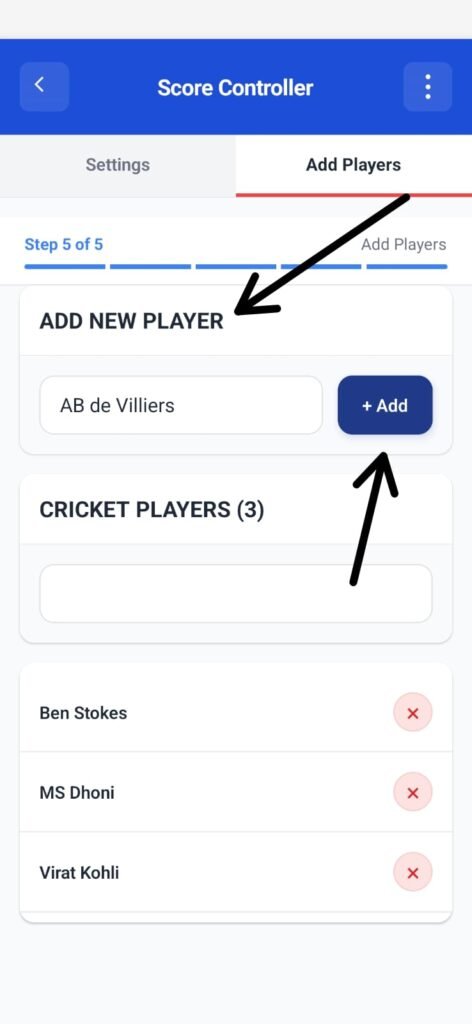
The Add New Player field lets you create a player entry.
How to Add a Player #
- Tap the text input field
- Enter the player’s name
- Tap + Add
Once added, the player appears in the Cricket Players list.
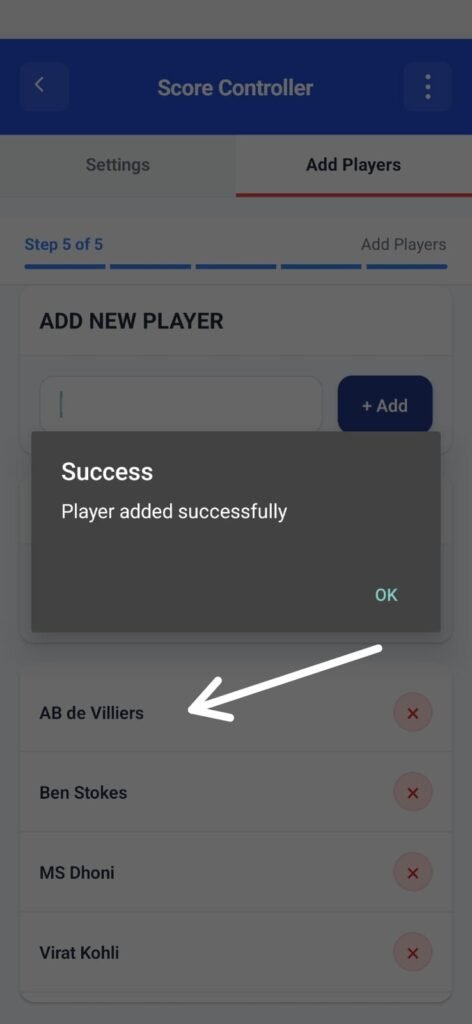
Cricket Players List #
This section displays all saved players.
- Initially shows “No players added yet”
- Updates automatically as players are added
- Player count is shown in brackets (e.g.,
Cricket Players (5))
Why This Matters #
Saved players:
- Can be selected instantly during scoring
- Reduce typing errors
- Improve speed during live matches
You can reuse the same player list for multiple matches.
Best Practices for Adding Players #
- Add all team players before starting the match
- Use clear, consistent names
- Avoid duplicate spellings (e.g., “Rahul” vs “Rahool”)
- Add substitutes if required
Switching Between Settings and Add Players #
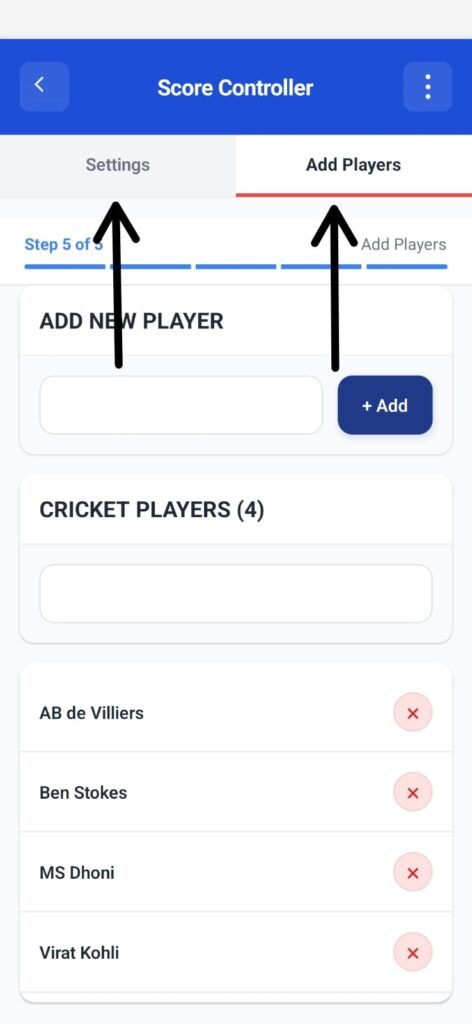
You can move freely between:
- Settings → Match & team rules
- Add Players → Player list
No data is lost while switching tabs.
Begin Your Match #
Once players are added (or skipped):
- Review your match settings
- Confirm teams and rules
- Tap Start New Match
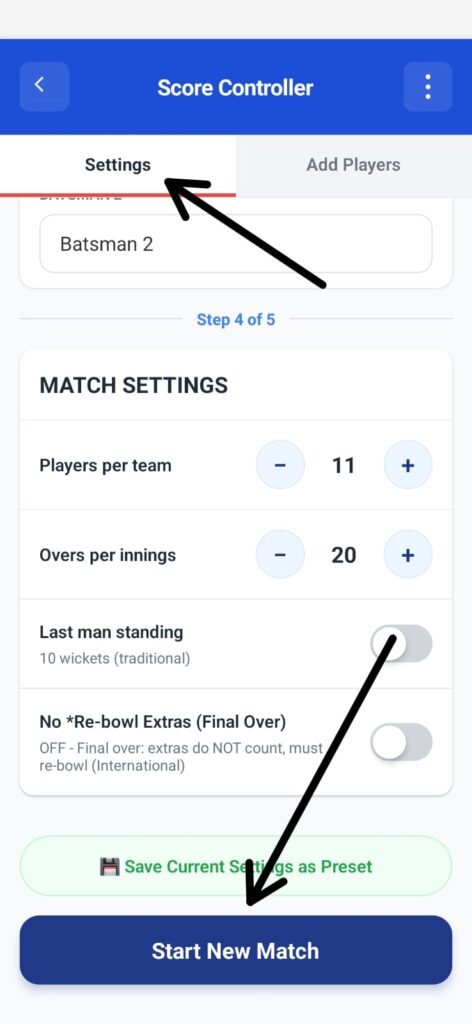
What Happens Next #
- Match setup is locked
- Scoring screen opens
- Players can be selected instantly from the saved list
- Live scoring begins
Important Notes #
- Adding players is not mandatory
- You can still enter player names manually during scoring
- Player list remains saved for future matches


