Bluetooth Low Energy (BLE) broadcasting allows the Scorer App to transmit live match scores automatically while scoring. This is used for real-time score overlays on connected systems.
This guide explains how a scorer enables BLE broadcasting and starts scoring without interruption.
Overview #
When Bluetooth broadcasting is enabled, the Scorer App becomes the live score source.
All scoring updates are transmitted automatically in the background while the match is being scored.
Key benefits:
- Live score overlays update in real time
- No internet connection required
- No manual sending during scoring
Selecting Bluetooth Broadcasting #
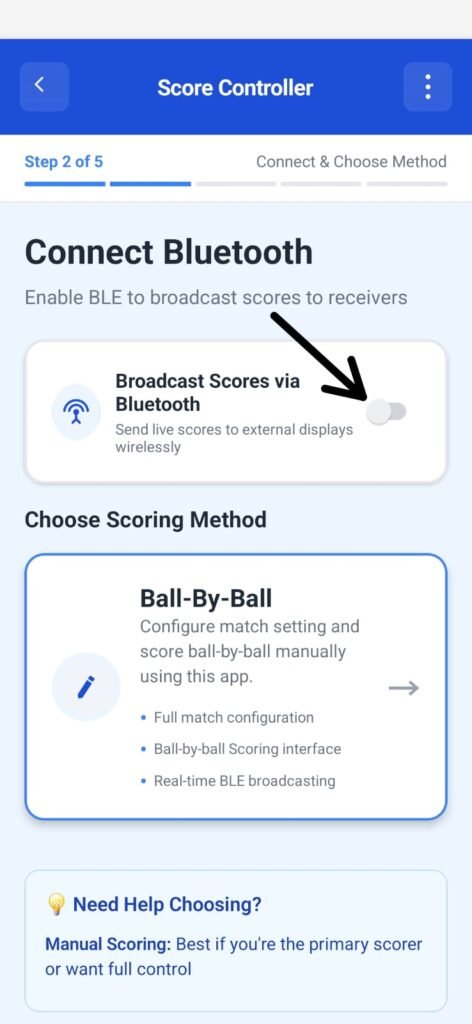
1. Enable Bluetooth Broadcasting (Optional but Recommended)
On this screen, you can activate BLE broadcasting so the app can send live match scores to nearby receivers.
Toggle:
Broadcast Scores via Bluetooth
Send live scores to external displays wirelessly.
When this toggle is turned ON, the app prepares to broadcast scores in real time during the match.
(If Bluetooth or permissions are required, the app will prompt you automatically after enabling.)
Bluetooth Broadcasting – Confirmation Step #
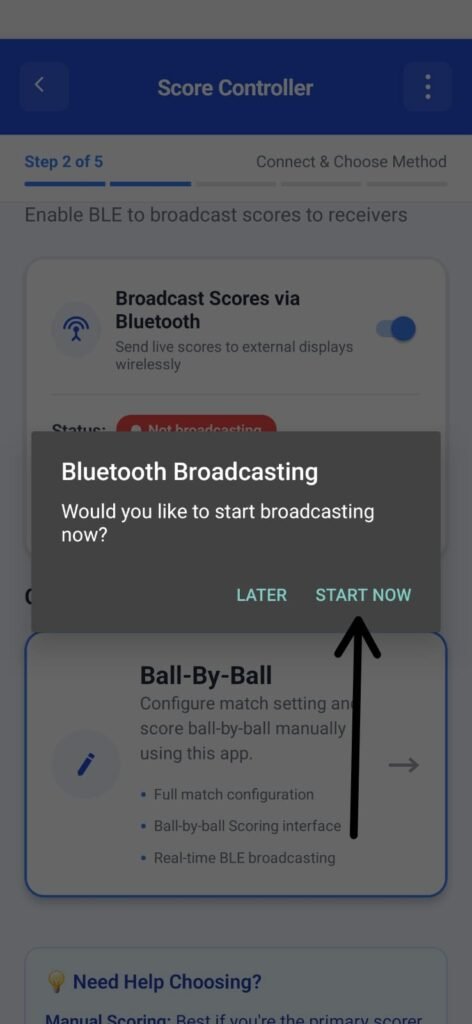
After enabling the “Broadcast Scores via Bluetooth” toggle, a confirmation popup will appear:
Bluetooth Broadcasting
“Would you like to start broadcasting now?”
Options: Later | Start Now
Recommended Action:
Select Start Now to proceed with enabling live Bluetooth broadcasting.
Notification Permission Prompt #
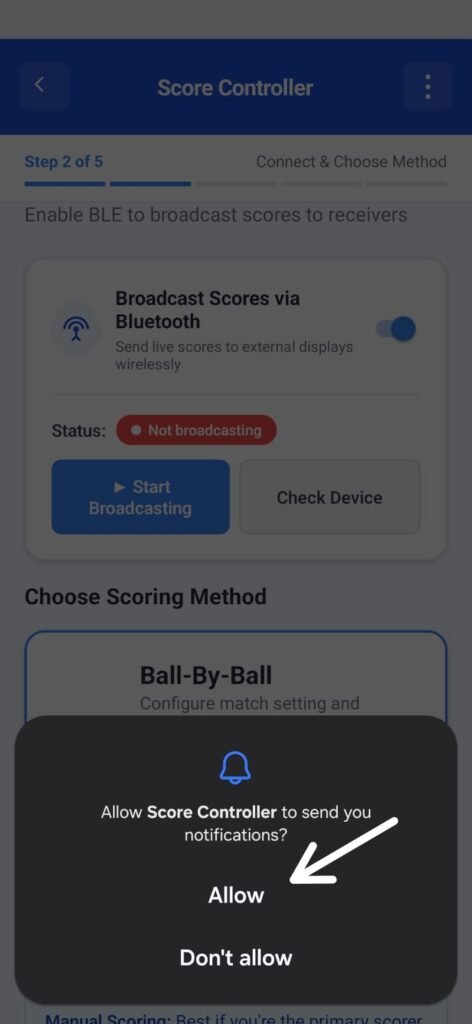
After enabling Bluetooth broadcasting, the app will prompt you to allow notifications:
“Allow Score Controller to send you notifications?”
Options: Allow | Don’t Allow
Recommended Action:
Select Allow to ensure you receive important alerts and real-time broadcasting updates.
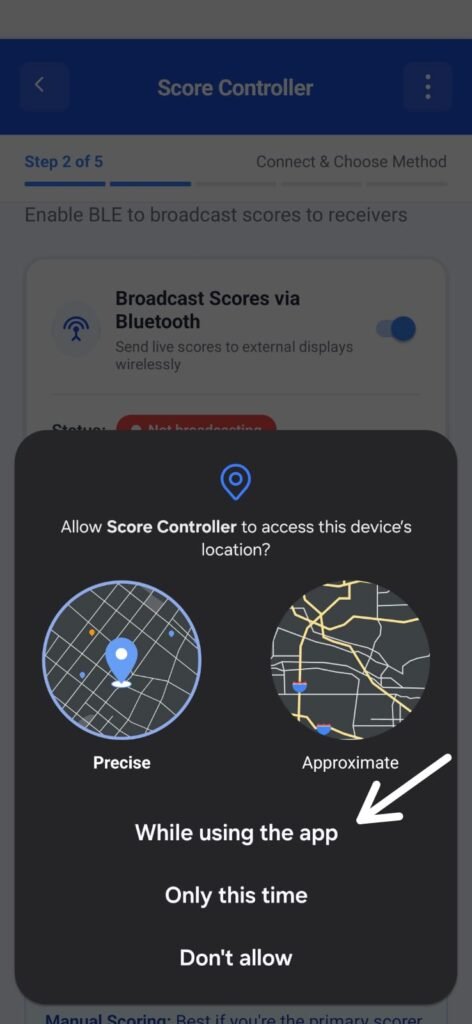
Location Permission Request #
After notifications are granted, the system requests location access required by Android for BLE scanning and broadcasting:
Prompt shown:
“Allow Score Controller to access this device’s location?”
You’ll see two accuracy options:
- Precise
- Approximate
And three permission modes:
- While using the app
- Only this time
- Don’t allow
Recommended Action:
Select While using the app (either Precise or Approximate works).
This is required for Bluetooth Low Energy broadcasting to function reliably.
Nearby Devices Permission (Required for BLE Connection) #
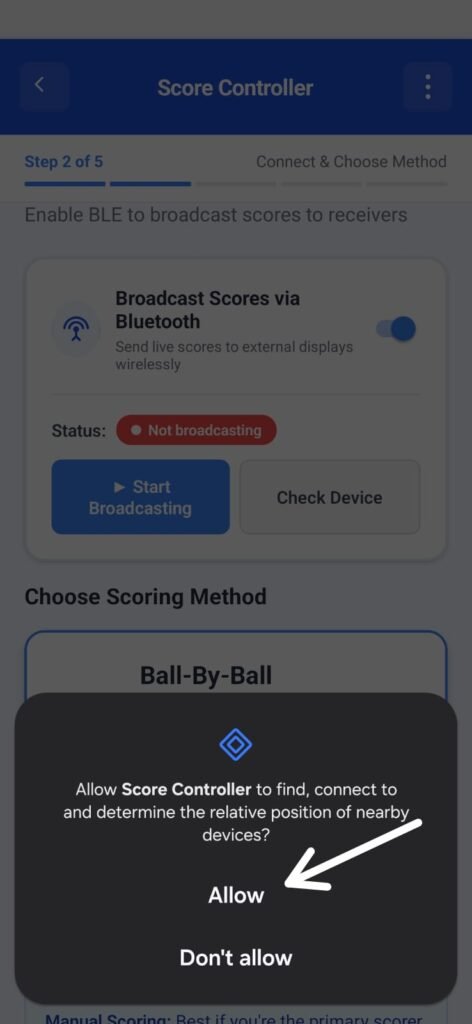
After granting location access, Android will display an additional prompt asking for permission to detect and connect with nearby Bluetooth devices.
Prompt shown:
“Allow Score Controller to find, connect to and determine the relative position of nearby devices?”
Recommended Action:
Select Allow.
This permission is mandatory for establishing and maintaining BLE broadcasting connections.
Granting this ensures:
- Automatic reconnection and reliable data transmission
- The app can discover the receiver device
- Stable BLE broadcasting during the match
Bluetooth Connection & Broadcasting Flow #
1. Enable Broadcasting on the Scorer App #
After granting all required permissions (Notifications → Location → Nearby Devices) and turning ON Broadcast Scores via Bluetooth, the scorer app begins advertising the BLE signal.
However, the connection is not established yet — the scorer is only broadcasting.
2. Connect From the Recorder App (Mandatory Step) #
To complete the setup:
Step 1 — Open the Recorder App #
Launch the Recorder App on the receiving device.
Step 2 — Tap “Connect BLE Device” #
The Recorder App will begin scanning for nearby BLE broadcasts.
Step 3 — Select the Scorer Device #
When the scorer device appears in the list, tap to connect.
Step 4 — Successful Connection #
Once the connection is complete:
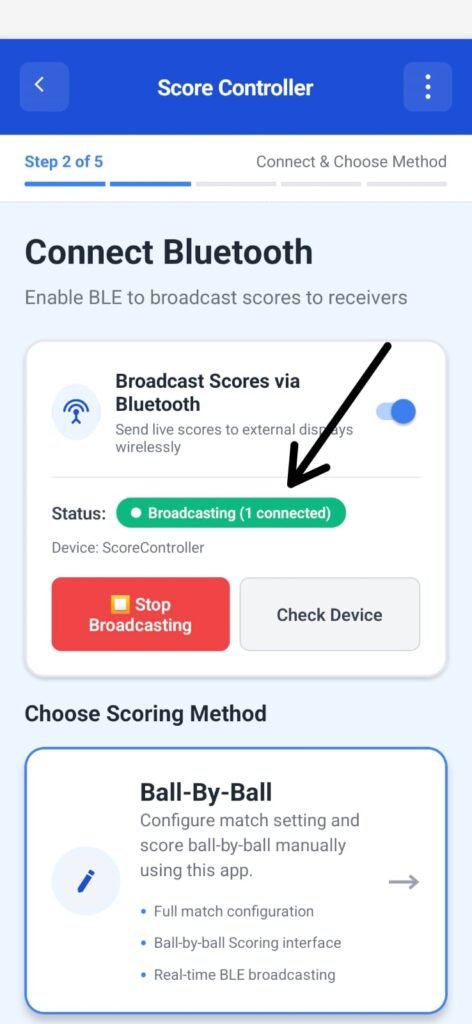
- Scorer App:
Status: Broadcasting (1 connected)
This confirms broadcasting is active and one receiver is connected.
- Recorder App:
Displays “Connected to BLE Device”.
The toggle Broadcast Scores via Bluetooth remains ON throughout.
3. What This Means #
- BLE broadcasting is fully active.
- The receiver is paired and receiving real-time scoring data.
- The system is ready for live score synchronization.
4. User Action #
No further setup needed.
Proceed to select your scoring method (e.g., Ball-By-Ball) and start scoring the match.


