
This guide explains how to use the Sport Selection screen in the Score Controller app. This is the first screen users see after opening the app and is required to begin scoring.
Overview #
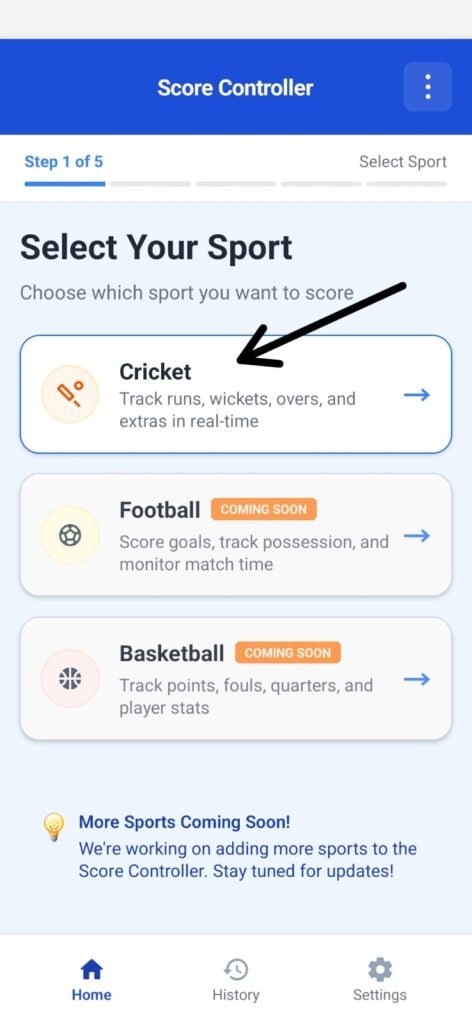
The Sport Selection screen allows users to choose which sport they want to score using Score Controller.
At present:
- Cricket is available and fully functional
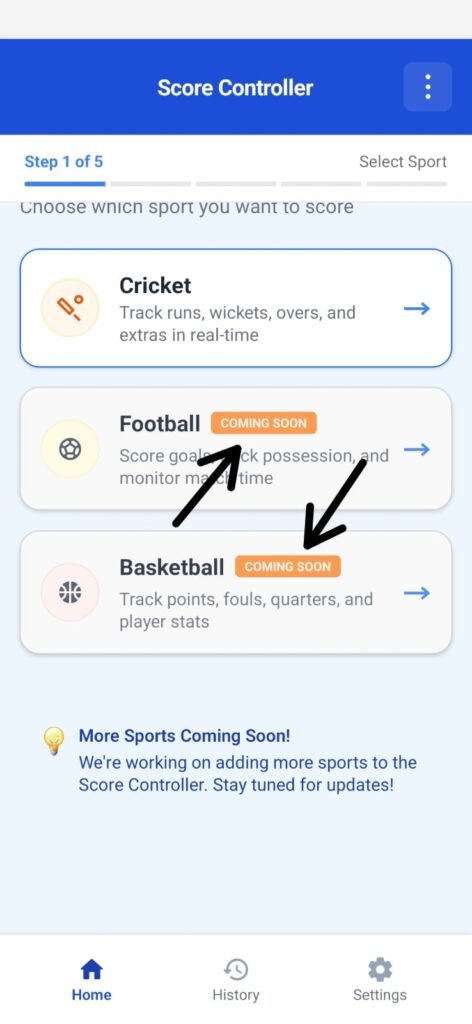
- Football and Basketball are marked as Coming Soon and are not yet accessible
This screen ensures users clearly understand which scoring features are currently supported.
Note: #
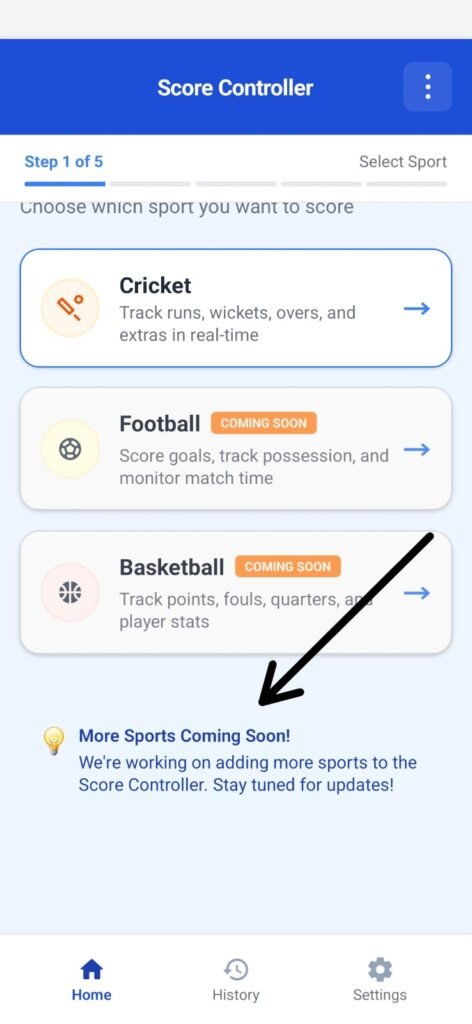
A message at the bottom informs users that more sports will be added in future updates.
This helps set expectations and reassures users about upcoming features.
Bottom Navigation #
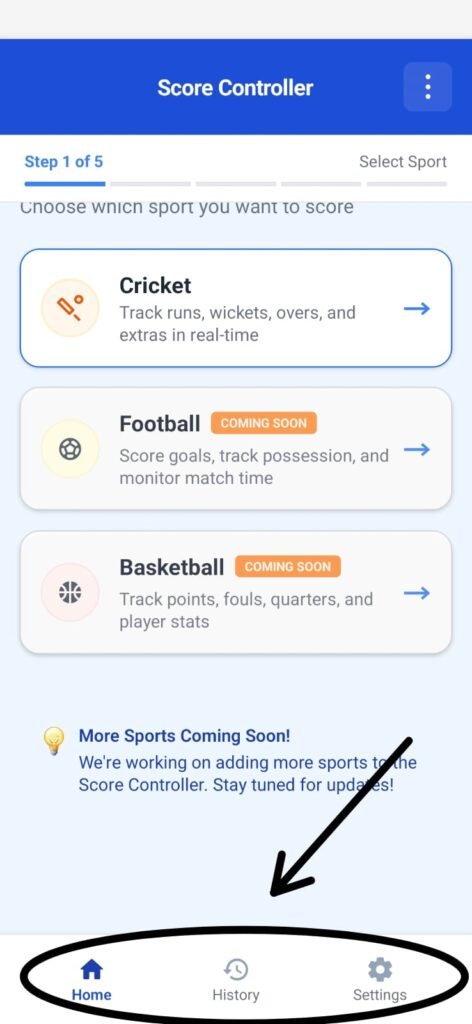
The bottom navigation bar includes:
- Home – Returns to the Sport Selection screen
- History – View previously scored matches
- Settings – App preferences and configuration
The active tab is visually highlighted.
How to Use This Screen #
Step 1: Open the App #
- Launch the Score Controller app
- The Sport Selection screen is displayed automatically
Step 2: Select an Available Sport #
- Tap on Cricket
- The app proceeds to the next screen
Notes for Users #
- Only Cricket can be selected currently
- Sports marked Coming Soon are not active yet
- This screen must be completed before starting any scoring session
Next Steps #
After selecting Cricket, users will continue to the cricket scoring setup process.
(Details covered in the next guide.)


