
This section explains how to record every delivery, update the score, manage dismissals, control overlay positions, and reset match data using the new scoring interface.
Once you reach this screen, you are in the live scoring environment.
1. Overview of the Scoring Screen #
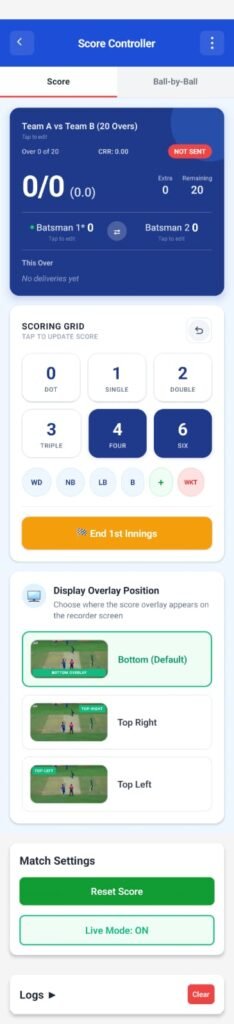
When you select Ball-By-Ball as the scoring method, the app displays the full scoring interface, including:
- Live match summary
- Current batsmen
- Scoring keypad
- Overlay controls
- Match settings
- Logs & actions
📌 This is where all live scoring takes place for the entire innings.
2. Score Summary Panel (Top Section) #
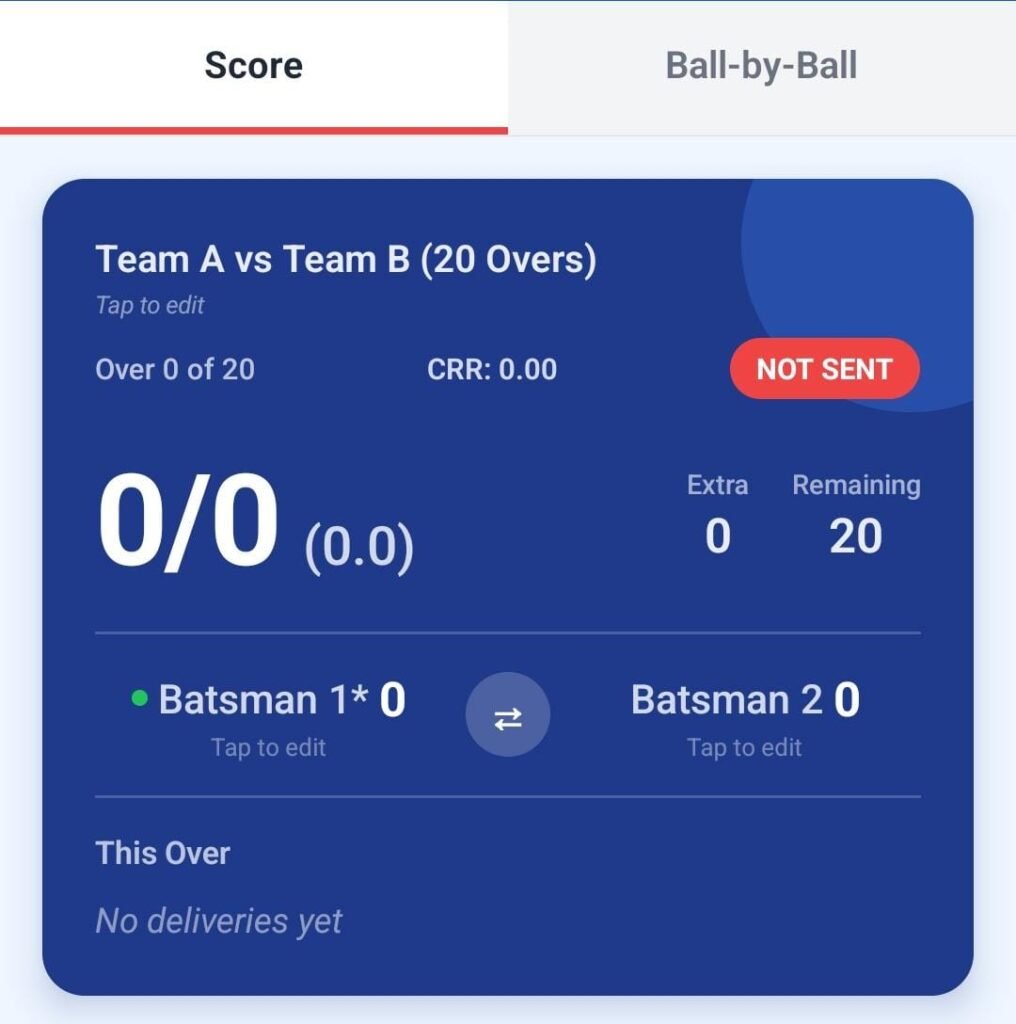
At the top of the scoring screen, you’ll see the live match summary:
- Teams (e.g., Team A vs Team B)
- Overs (e.g., Over 0 of 20)
- CRR (Current Run Rate)
- Extra runs total
- Remaining overs
- Striker and non-striker batsmen
Note: The match details can be edited by tapping the respective text fields.
You will also see:
- NOT SENT indicator → Shows whether the score has been transmitted to the receiver
- (“This Over”) Delivery history section
- Displays balls bowled in the current over
- Updates automatically after every scoring action
3. Scoring Grid (Keypad Input System) #
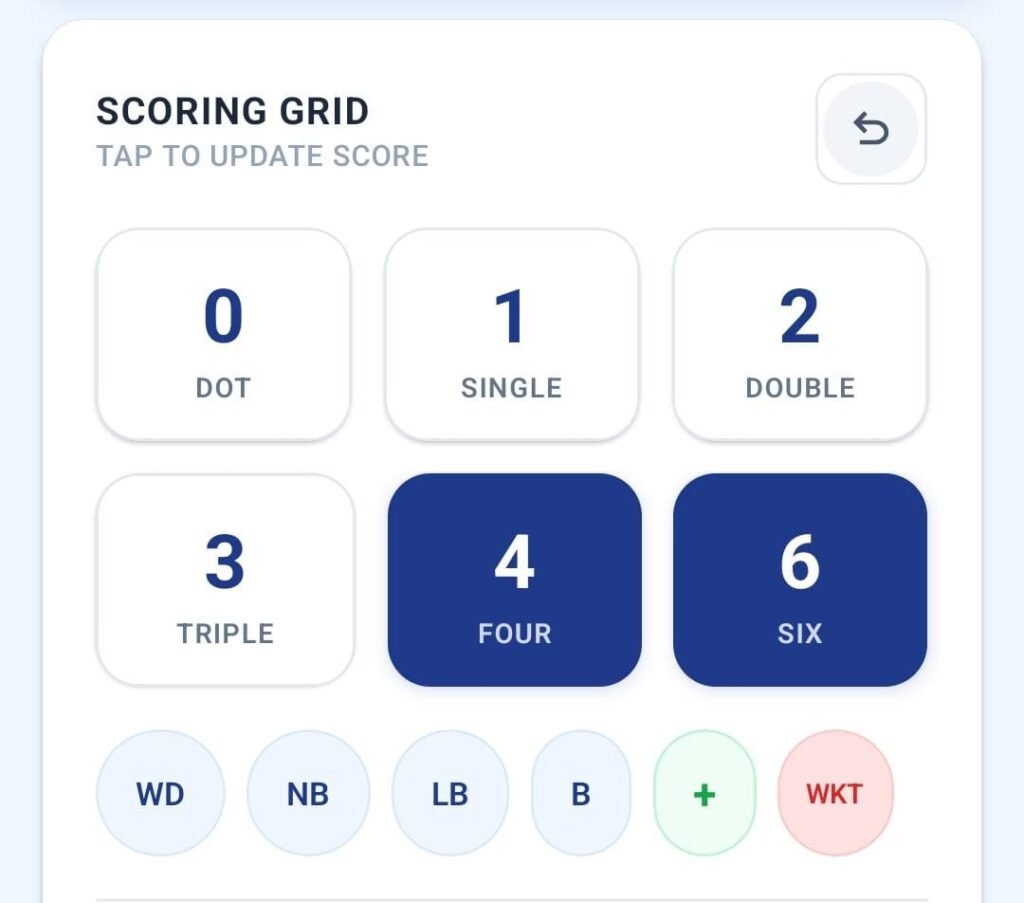
This is the primary scoring control where every ball outcome is entered.
Available Buttons #
- 0 – Dot Ball
- 1 – Single
- 2 – Double
- 3 – Triple
- 4 – Four
- 6 – Six
Extras #
- WD – Wide
- NB – No Ball
- LB – Leg Bye
- B – Bye
Dismissal #
- WKT – Wicket
How to Use #
Tap the appropriate button immediately after each delivery.
The app automatically updates:
- Batsman strike rotation
- Overs
- Balls
- Scorecard totals
- BLE broadcasting (if enabled)
📌 Every tap instantly updates the receiver overlay via Bluetooth.
4. Undo Button – Reverse Last Ball Entry #
Purpose #
The Undo feature allows scorers to correct accidental inputs by removing the most recent ball entry and restoring the score to its previous state.
This feature works only within the current over to maintain scoring accuracy and match integrity.
Availability Rule #
Undo works only for deliveries in the current over.
Once an over is completed and the next over begins, previous overs cannot be undone.
Where to Find the Undo Button #
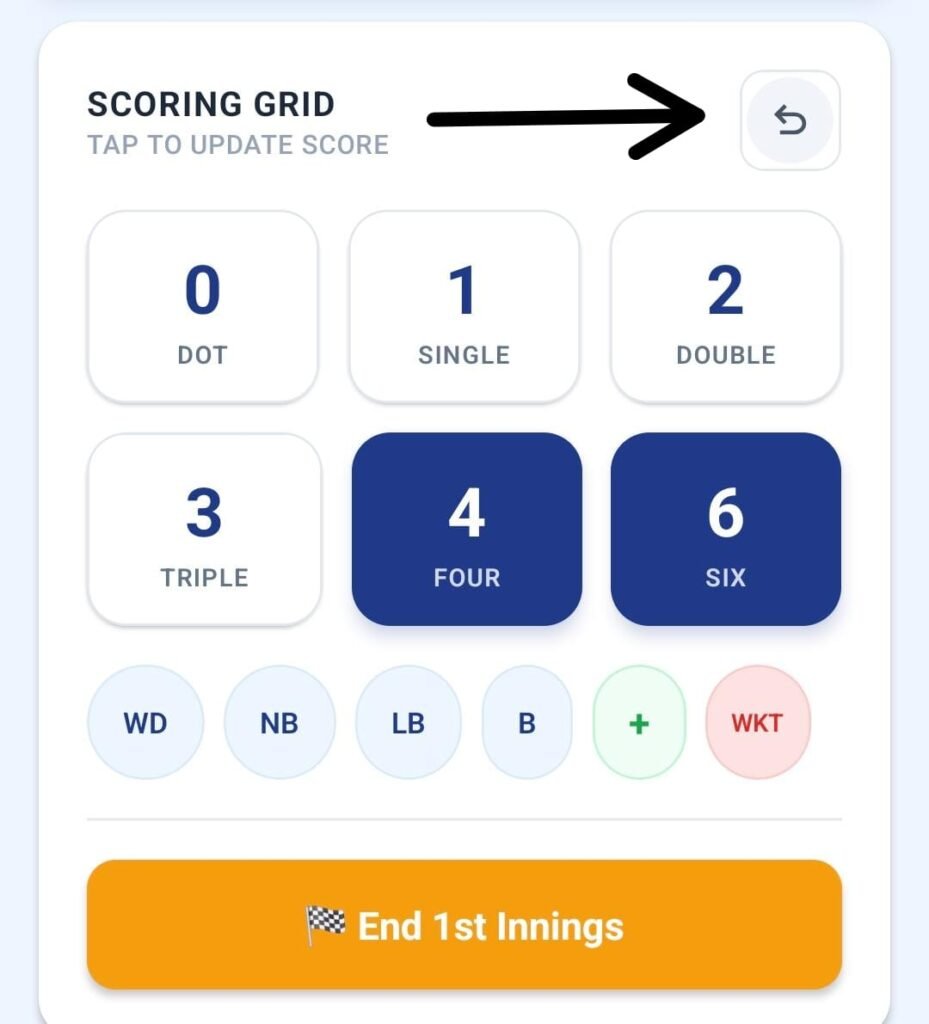
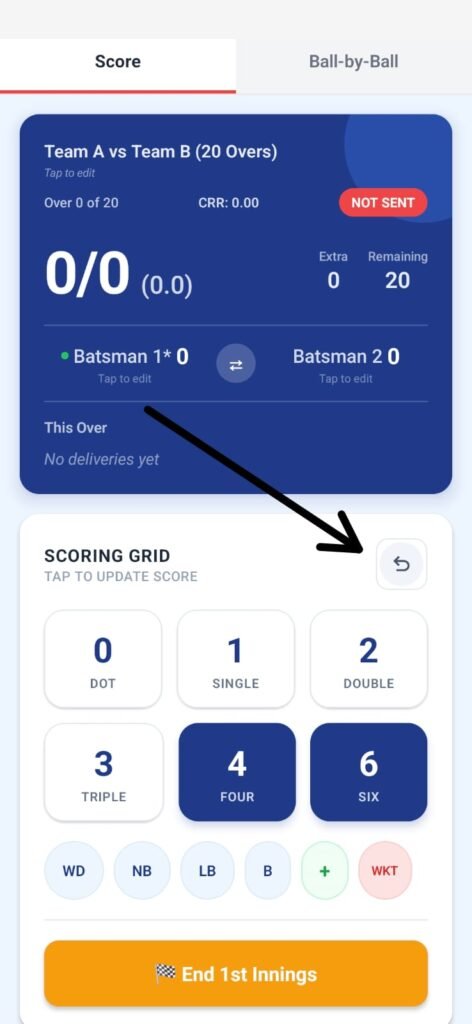
The Undo icon is located in the Scoring Grid section, at the top-right corner above the scoring buttons.
It appears as a curved back arrow.
Use this button immediately after a mistake.
When to Use #
Use Undo if you accidentally:
- Entered the wrong run (0–6)
- Added an incorrect extra (WD, NB, LB, B)
- Recorded a wicket by mistake
- Tapped the wrong scoring option
How It Works #
Step 1 – Enter Scores Normally #
Tap scoring options (0, 1, 4, 6, wicket, extras, etc.).
The scoreboard and “This Over” section update automatically.
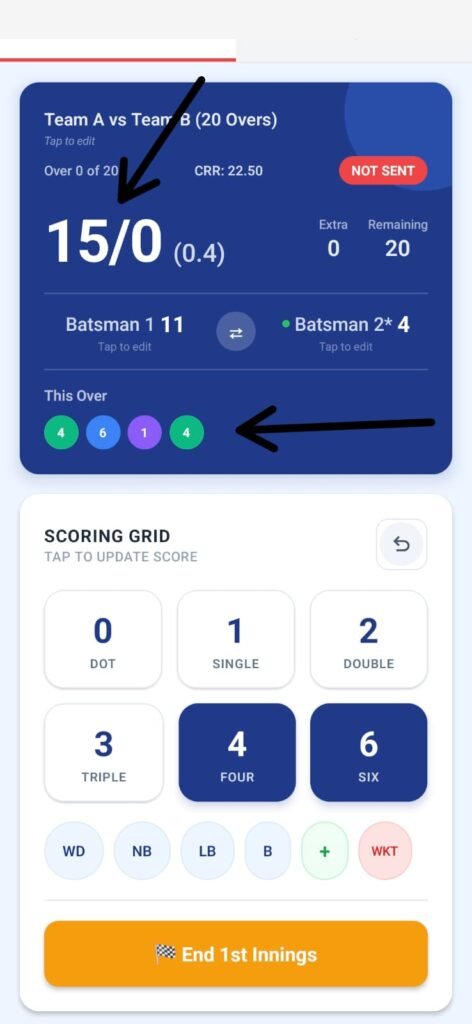
Example:
This Over: 4, 6, 1, 4
Score: 15/0 (0.4 overs)
Step 2 – Mistake Occurs #
If the last entry is incorrect, do not continue scoring.
Use Undo immediately.
The last ball in “This Over” is always the one removed.
Step 3 – Tap Undo #
Tap the Undo button once.
Result:
- Last ball entry removed
- Score returns to previous value
- Batsman scores adjust
- Over progress updates
- “This Over” list updates
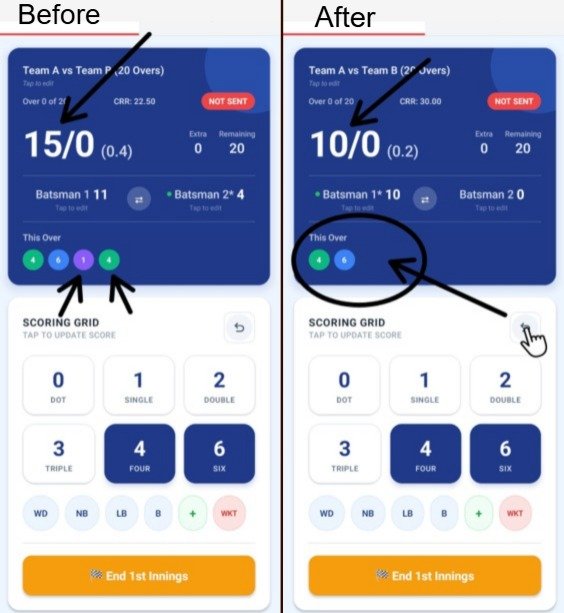
Example:
15/0 (0.4) → Undo → 10/0 (0.2)
This Over: 4, 6, 1, 4 → becomes → 4, 6
Limitations #
- Undo removes only one delivery at a time.
- Multiple taps = multiple reversals (within the same over).
- Cannot undo deliveries from previous overs.
- Once an over is completed, its entries are locked.
- Undo is unavailable if no ball has been recorded in the current over.
Best Practice for Scorers #
- Check each entry before tapping.
- If a mistake happens, undo immediately.
- Do not start the next over until the current over is verified.
- Monitor the “This Over” section for accuracy.
| Situation | Action |
|---|---|
| Wrong run entered | Tap Undo once |
| Wrong wicket added | Tap Undo once |
| Multiple mistakes in same over | Tap Undo multiple times |
| Mistake from previous over | Cannot undo (manual correction required) |
Summary #
The Undo button is a correction tool that reverses the most recent scoring action within the current over only.
It helps scorers quickly fix mistakes while ensuring completed overs remain accurate and locked.
5. Add Custom Runs “+” Button #
Purpose #
The Plus (+) feature allows scorers to manually add a custom number of runs for a single legal delivery when the required run value is not available in the standard scoring buttons (0,1,2,3,4,6).
Example:
If 5 runs are scored on a ball, this feature allows direct entry without combining multiple taps.
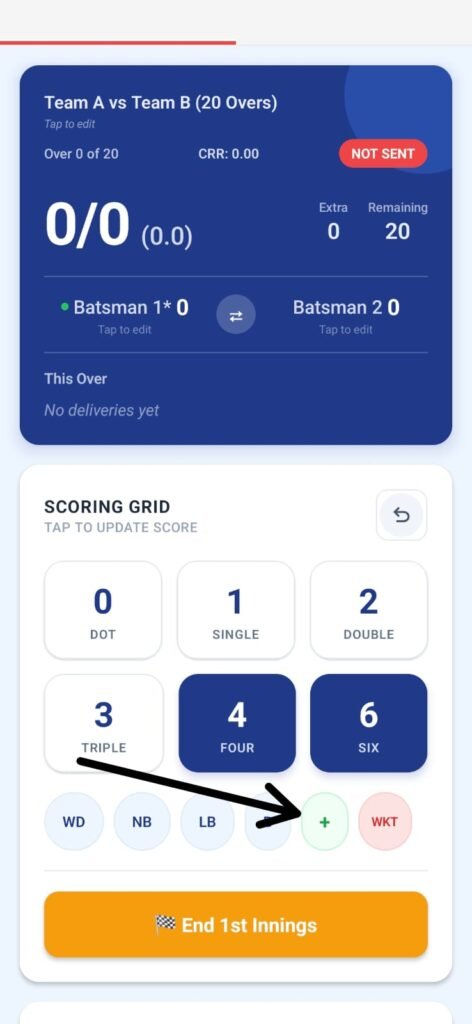
The Plus (+) icon is located in the Scoring Grid, next to extras and wicket buttons.
It appears as a green circular button with a + symbol.
When to Use #
Use this feature when:
- Runs scored are not available in default buttons
- Example: 5 runs, 7 runs, or any custom value
- You want to add runs directly in one entry
- You need precise scoring for unusual run outcomes
How the Plus Feature Works #
Step 1 – Tap the Plus Button #
Tap the + icon in the scoring grid.
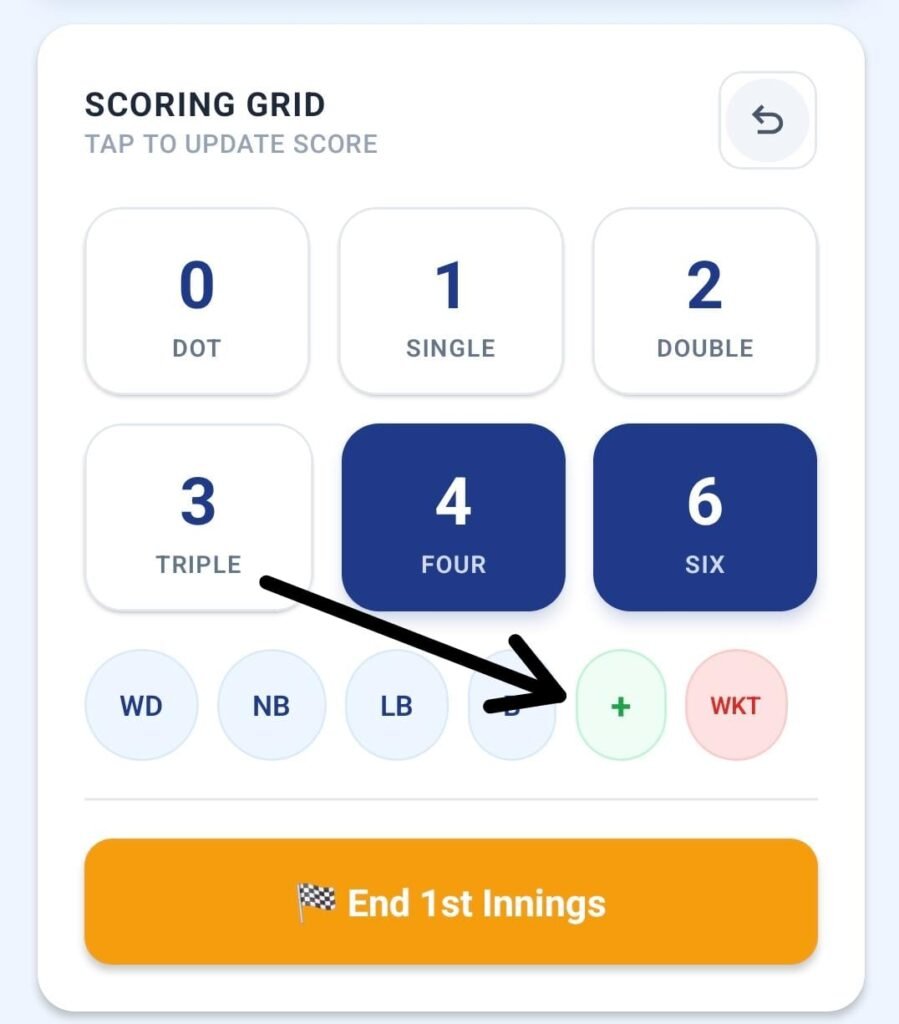
A popup window titled “Add Runs” will appear.
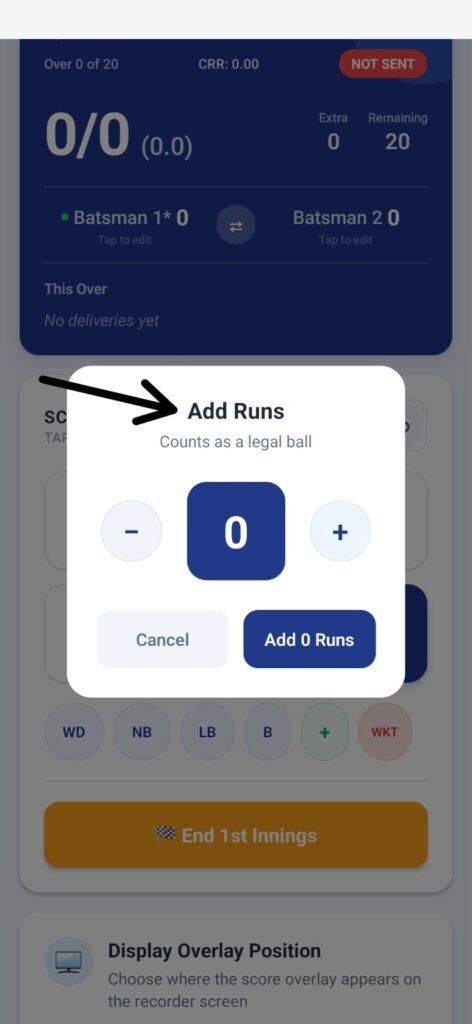
Step 2 – Select Number of Runs #
Inside the popup:
- Use the + button to increase runs
- Use the – button to decrease runs
- The selected value appears in the center
Example:
Adjust until the display shows 5 runs
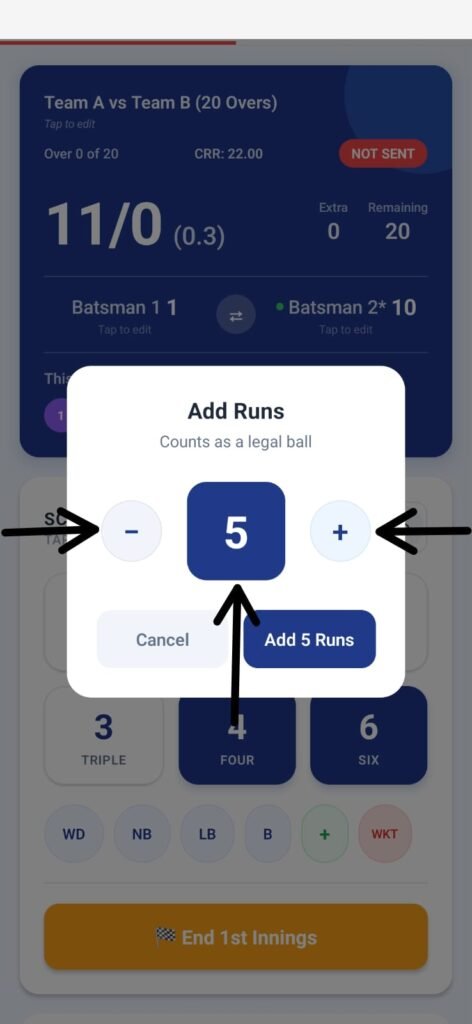
This entry counts as a legal ball.
Step 3 – Confirm Run Entry #
Tap “Add [X] Runs”
(Example: Add 5 Runs)
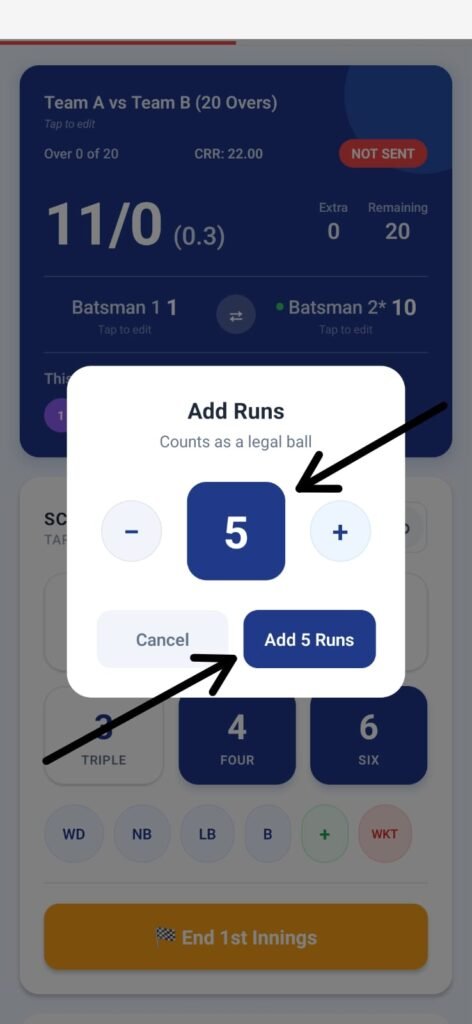
The system will:
- Add runs to total score
- Update batsman score
- Update over progress
- Add entry to “This Over” section
Result Example #
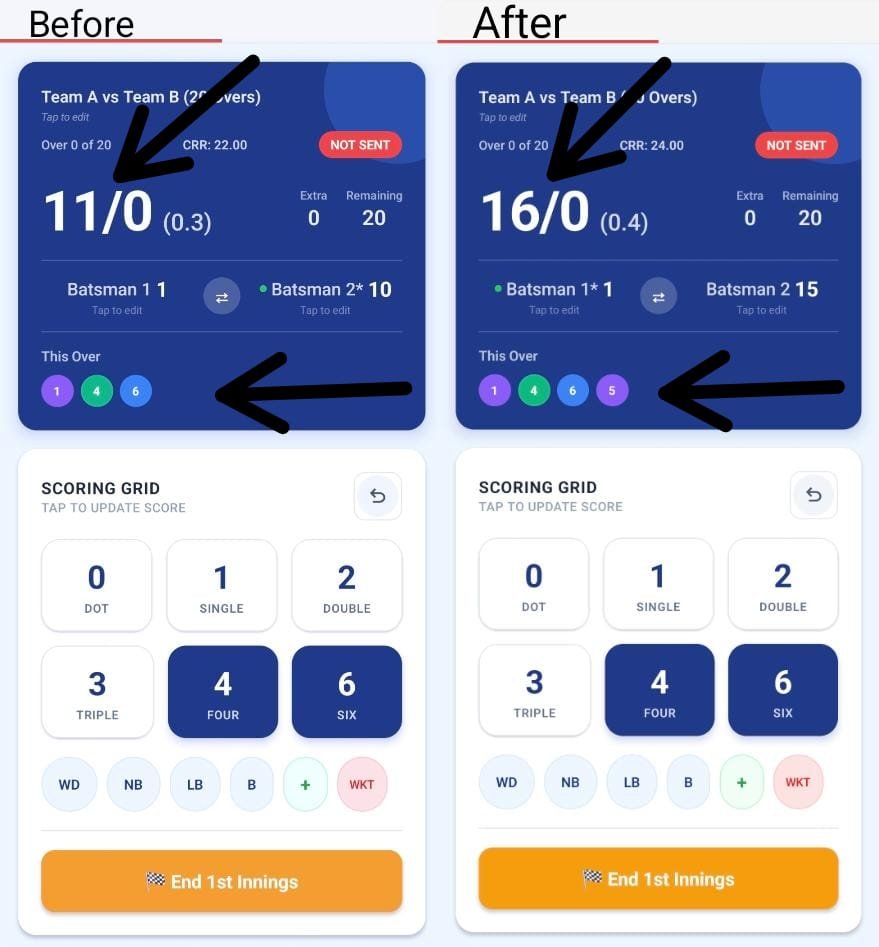
Before adding:
This Over → 1, 4, 6
Score → 11/0 (0.3)
After adding 5 runs:
This Over → 1, 4, 6, 5
Score → 16/0 (0.4)
All values update automatically.
Important Rules #
- Counts as one legal delivery
- Updates strike and over automatically
- Appears instantly in “This Over”
- Can be undone using Undo button (within current over only)
- Use only when run value is not available in standard buttons
Best Practice for Scorers #
- Use standard buttons for common runs (0–6).
- Use Plus feature only for custom run values.
- Verify run count before confirming.
- Check “This Over” after adding.
Common Use Cases #
| Situation | Action |
|---|---|
| 5 runs scored | Use Plus → Add 5 |
| Overthrow runs | Use Plus |
| Penalty runs | Use Plus |
| Unusual run count | Use Plus |
Summary #
The Plus (+) button enables scorers to add custom run values for a single delivery quickly and accurately.
It ensures flexibility in scoring while keeping over progression and totals fully synchronized.
Ball-by-Ball Tab (Complete Delivery Record) #
Purpose #
The Ball-by-Ball tab provides a complete chronological record of every delivery bowled in the match.
It allows scorers, viewers, and officials to review exactly what happened on each ball, over by over.
This section acts as the official delivery log of the innings.
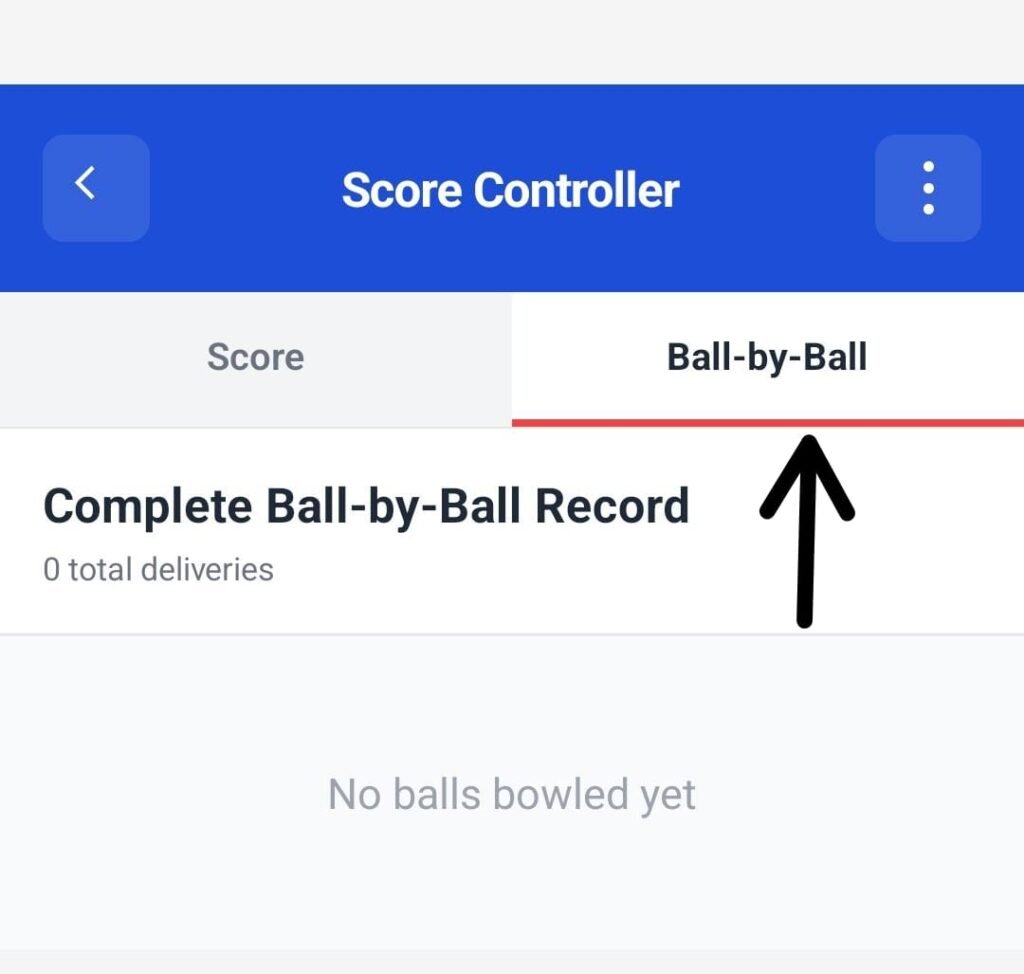
Where to Find This Feature #
Navigate to:
Score Controller → Ball-by-Ball tab
This tab sits next to the main Score tab.
What This Tab Shows #
1. Over Summary Header #
Each over ends with a summary row:
Example:End of Over 0: 16/1
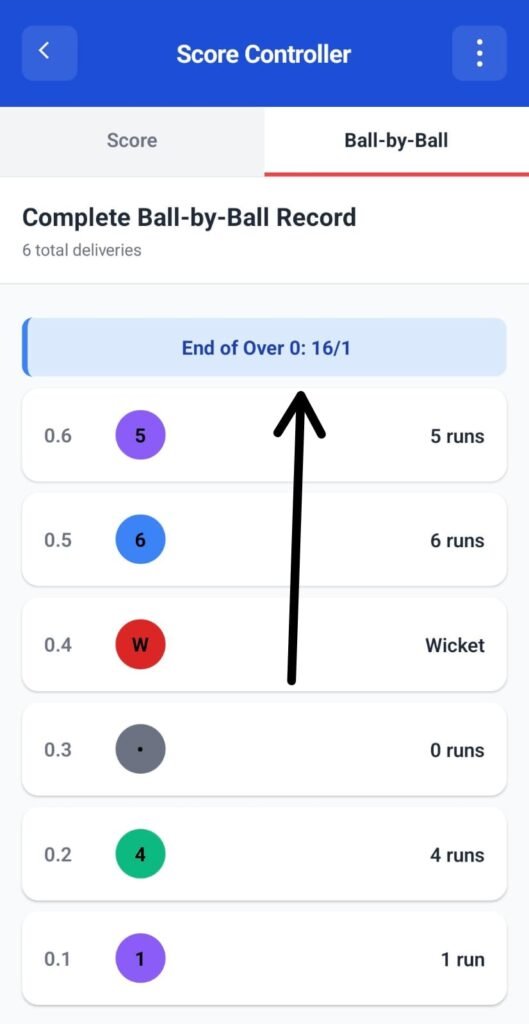
Meaning:
- 0 = First over completed
- 16 = Total runs scored so far
- 1 = Total wickets fallen
When the next over completes:
- End of Over 1
- End of Over 2
…and so on.
Over numbering rule:
- Over 0 = First over
- Over 1 = Second over
- Over 2 = Third over
The number increases after each completed over.
2. Individual Ball Entries #
Each delivery is listed with:
| Element | Meaning |
|---|---|
| 0.1 | First ball of the over |
| 0.2 | Second ball |
| 0.3 | Third ball |
| 0.4 | Fourth ball |
| 0.5 | Fifth ball |
| 0.6 | Sixth ball |
After 0.6 → over ends → next becomes 1.1
3. Delivery Result Indicators #
Each ball shows the outcome using color-coded icons:
| Indicator | Meaning |
|---|---|
| 1 | Single run |
| 2 | Two runs |
| 4 | Boundary four |
| 6 | Six |
| • | Dot ball |
| W | Wicket |
| 5 (example) | Custom runs via + feature |
The right side also shows text:
- “1 run”
- “4 runs”
- “Wicket”
- “0 runs”
How It Updates #
Every time a scorer enters a ball:
- Entry appears instantly in the Ball-by-Ball tab
- Delivery number updates (0.1 → 0.2 → 0.3…)
- At 6 legal balls → Over summary appears
- New over starts automatically
Example Flow #
Over 0:
- 0.1 → 1 run
- 0.2 → 4 runs
- 0.3 → dot ball
- 0.4 → wicket
- 0.5 → 6 runs
- 0.6 → 5 runs
System displays:
End of Over 0: 16/1
Next ball becomes:
1.1
Key Functions #
Review Match History #
Users can scroll to:
- Check any delivery
- Verify scoring accuracy
- Confirm wickets
- Review over performance
Transparency & Accuracy #
This tab ensures:
- No delivery is missed
- Full scoring transparency
- Easy dispute resolution
- Official match audit trail
Important Rules #
- Every legal ball is recorded sequentially.
- Extras and custom runs also appear.
- Completed overs are grouped together.
- Past overs cannot be edited if undo window has passed.
- Scroll to view earlier overs.
Best Practices for Scorers #
- Use this tab to verify each over after completion.
- Check totals match scoreboard.
- Confirm wickets and extras.
- Review before ending innings.
Common Use Cases #
| Scenario | Use |
|---|---|
| Check last over performance | View Ball-by-Ball |
| Verify wicket timing | Scroll to delivery |
| Review scoring mistake | Compare with live score |
| Match summary review | Check over headers |
Summary #
The Ball-by-Ball tab is the official delivery-level record of the match.
It logs every ball, over, run, and wicket in sequence, ensuring full scoring accuracy and match transparency.
4. End of Over / End of Innings #
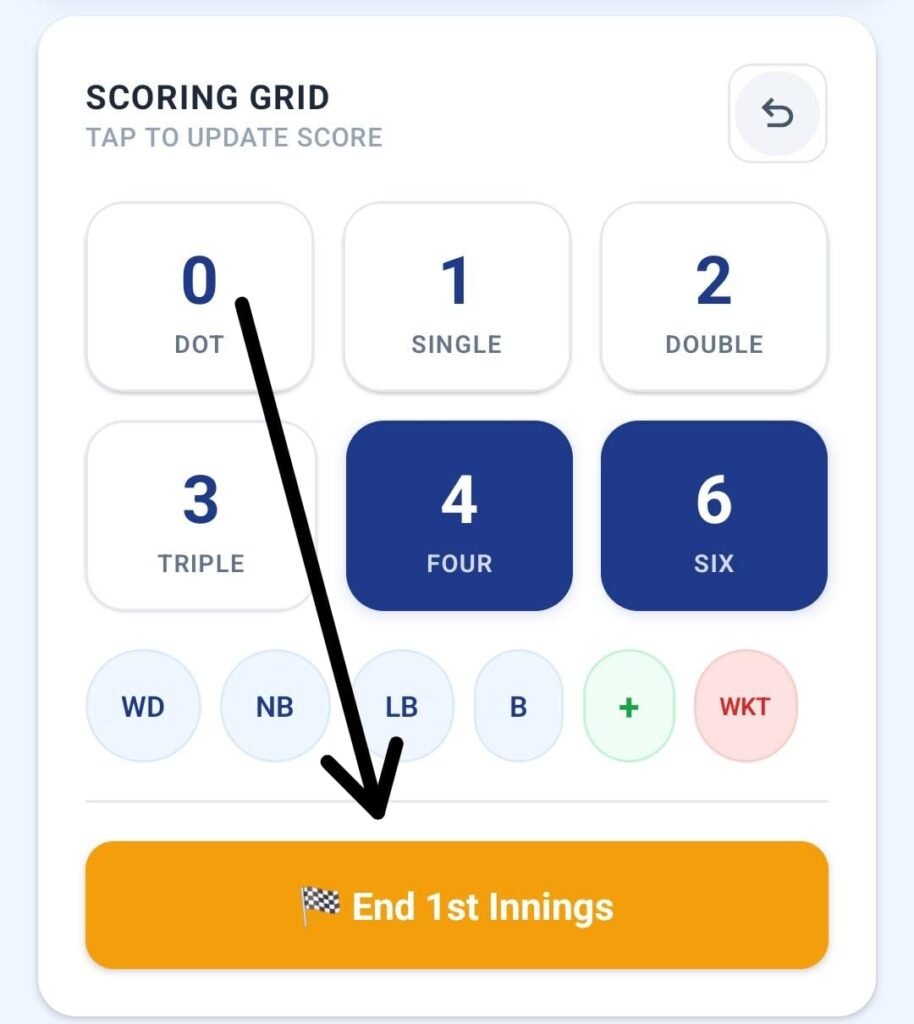
End 1st Innings Button #
Tap End 1st Innings when the innings is complete.
This moves the match to the next innings setup.
5. Display Overlay Position (Receiver Overlay Control) #
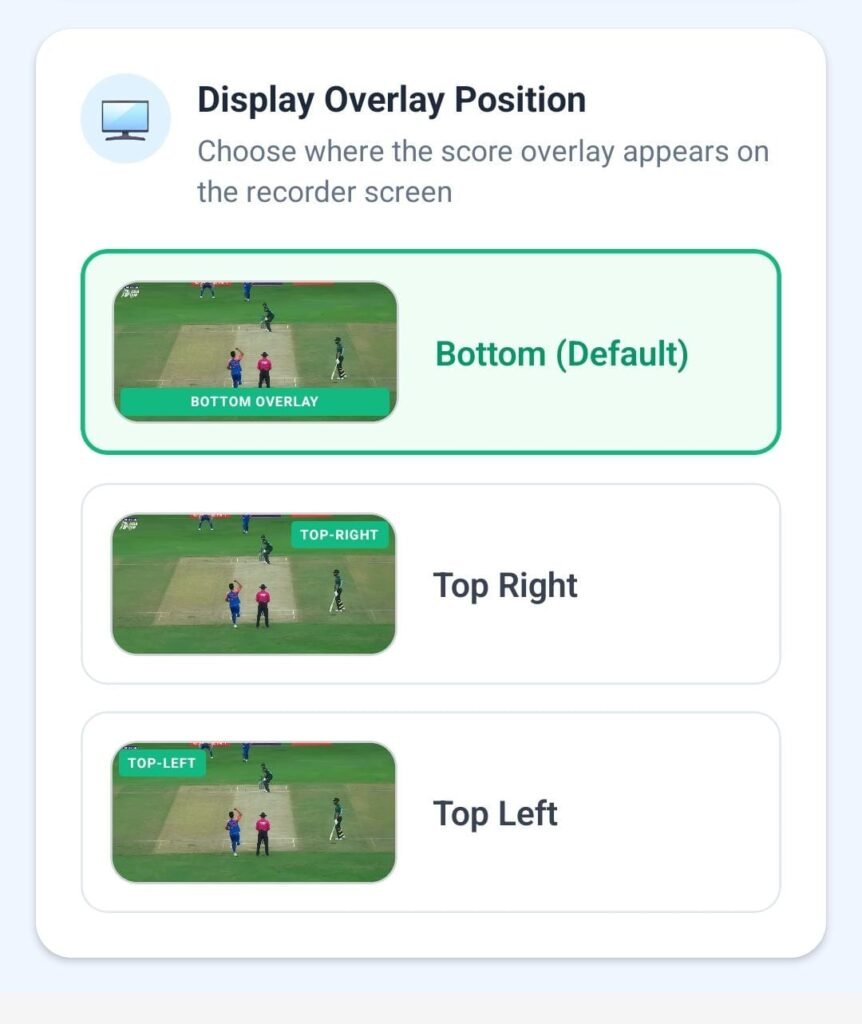
This section controls the position of the score overlay on the Recorder App screen.
Available overlay positions:
- Bottom (Default)
- Top Right
- Top Left
To change the overlay position:
- Tap any overlay preview image
- The selected position is highlighted with a green border
- The new position will instantly reflect on the Recorder App
📌 Ideal for aligning overlays based on your camera angle.
6. Match Settings Panel #
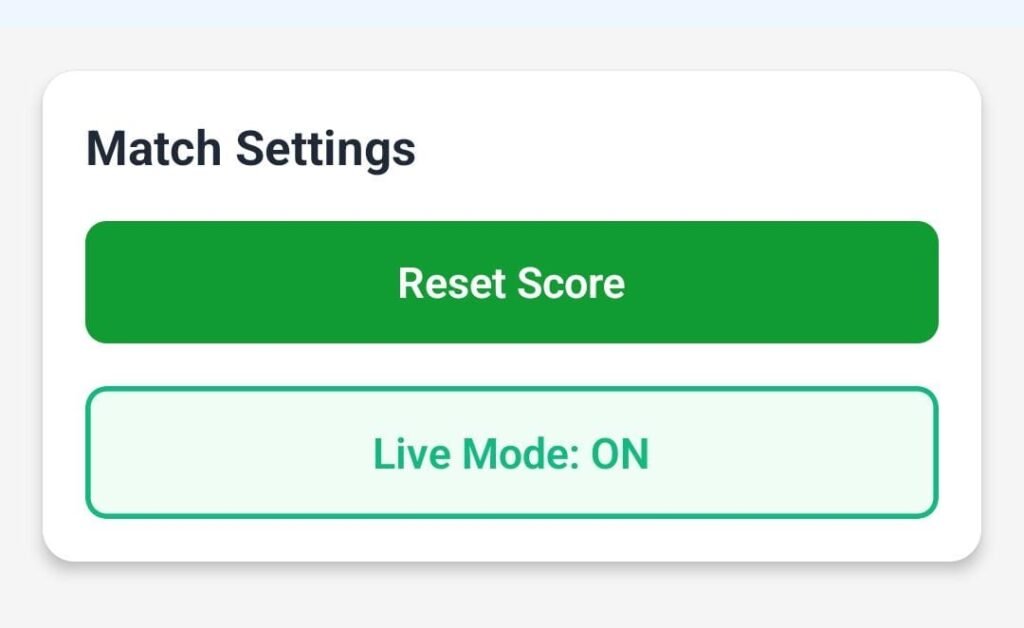
This panel contains core control actions.
Reset Score #
Reverts the entire scoreboard to 0/0.
Use only before innings begins or when restarting a match.
⚠️ Warning: This action clears the scoring progress.
Live Mode: ON #
Indicates that BLE broadcasting is currently active.
- Always keep ON during live scoring
- Required for real-time overlays
7. Logs & Clear Action #
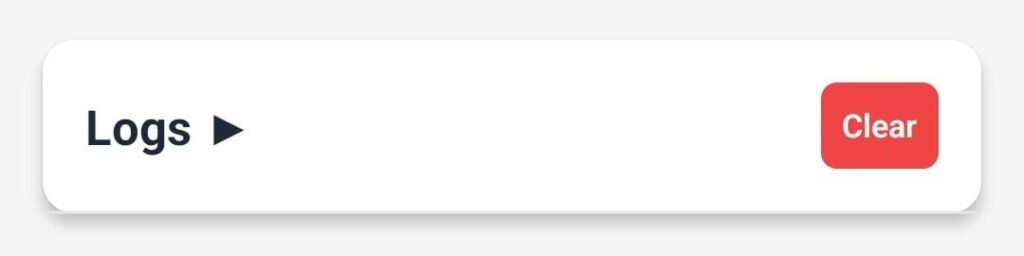
Logs #
Opens a detailed event log of:
- Scoring actions
- Overs
- Wickets
- Edits
Useful for correcting mistakes or reviewing match flow.
Clear Button #
Clears logs only — does not reset the match score.
8. What Happens Next #
After completing your scoring for the innings or match:
- Continue to innings transition
- Finalize match results
- Export or share score summaries
- Review logs


