Clubsmaster – Real-Time Score Overlay Apps
  • Home
  • Score Overlay
  • Products
    • Clubs Management
    • Fixtures Management
    • Cricket Data Integration
  • Pricing
  • Documentation
  • Contact
  • Home
  • Score Overlay
  • Products
    • Clubs Management
    • Fixtures Management
    • Cricket Data Integration
  • Pricing
  • Documentation
  • Contact
X
Clubsmaster – Real-Time Score Overlay Apps

How can we help you?

One App Every Game

Scorer Controller App

8
  • Scorer App Overview
  • Step 1: Select Your Sport
  • Step 2: Connect Your Bluetooth – BLE Setup (Mandatory)
  • Step 3: Choose Scoring Method
  • Step 4: Team Settings
  • Step 5: Match Settings
  • Step 6: Add Player & Begin your Match
  • How to Score a Match (Ball-by-Ball Scoring Interface)

ScoreCast App

7
  • ScoreCast App Overview
  • Getting Started With ScoreCast
  • Recording Menu – Recoding Configuration
  • Live Stream Menu – Configuration
  • Sponsored Menu – Configuration
  • Start Recoding – UI Interface
  • Ideal Refresh for Record Important Information

Introduction & Getting Started

4
  •  Introduction
  • Quick Start Guide
  • Two-Phone Workflow
  • System Requirements & Compatibility

Web App (app.clubsmaster.com)

9
  • Web App Overview
  • Choosing a Plan
  • Creating an Account (Signup)
  • Logging In
  • Dashboard Overview
  • Billing & Plans
  • Team & Member Management (Club Plan)
  • Account & Settings
  • Support & FAQs
  • Home
  • Docs
  • Android Apps (Scorer & Recorder App)
  • ScoreCast App
  • Ideal Refresh for Record Important Information
View Categories

Ideal Refresh for Record Important Information

1 min read

BLE Reconnect / Refresh Button #
Overview #

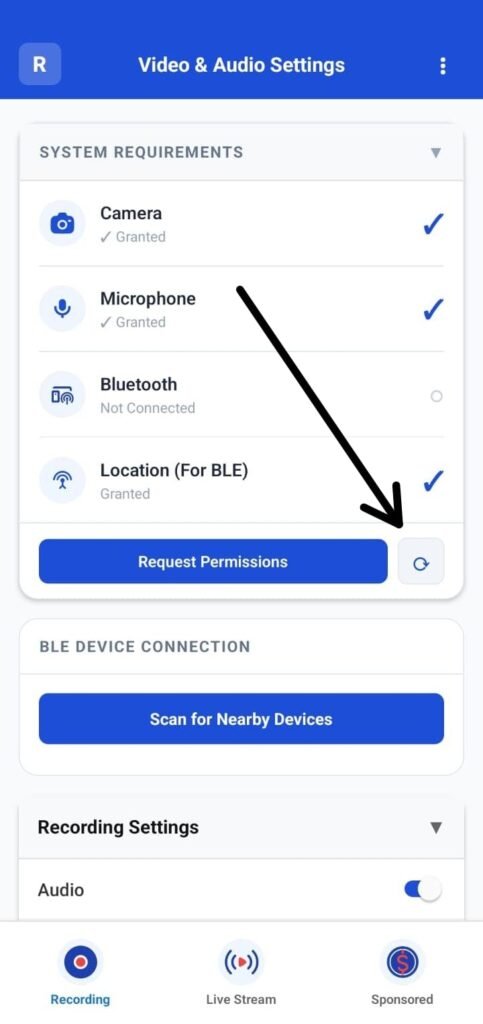
The Refresh / Reconnect button is used to restore the Bluetooth (BLE) connection between ScoreCast (Recorder App) and the Score Controller (Scorer App) when the connection is lost due to inactivity or app idle state.

When This Is Needed #

The BLE connection may get disconnected in cases such as:

  • The app remains idle for a period of time
  • Temporary Bluetooth interruption
  • The Score Controller app goes to background or reconnects
  • Minor app or system-level interruptions

When this happens, Bluetooth may still be enabled, but the apps are not actively connected.

How the Reconnect Button Works #
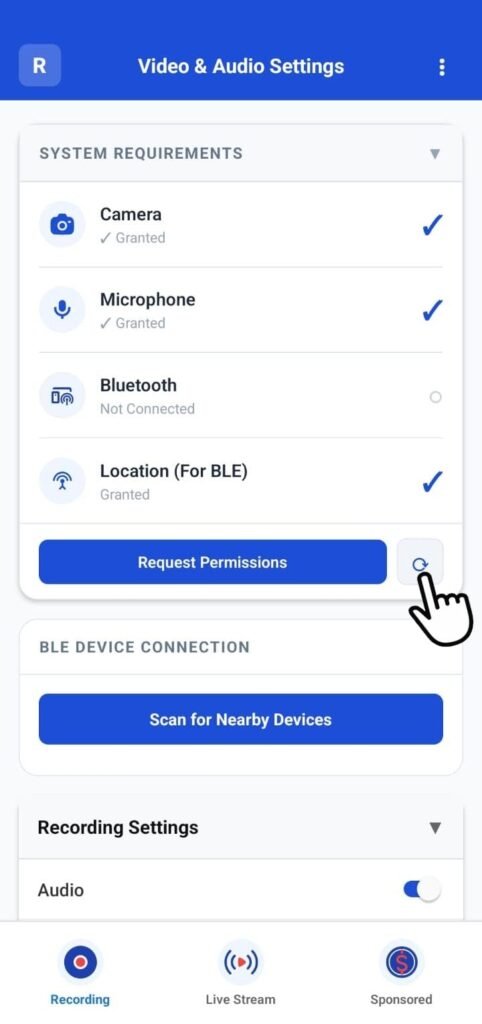
  • The refresh icon appears next to Request Permissions in the System Requirements section.
  • When tapped, ScoreCast automatically attempts to re-establish the BLE connection.
  • No manual Bluetooth pairing is required again.
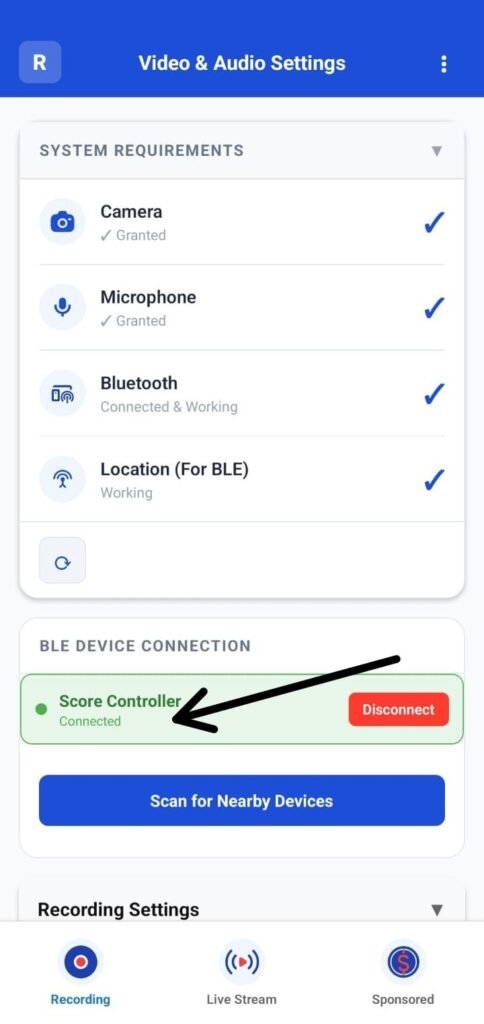
  • Once successful, the BLE status updates to Connected & Working.

What the User Will See #

Before reconnect
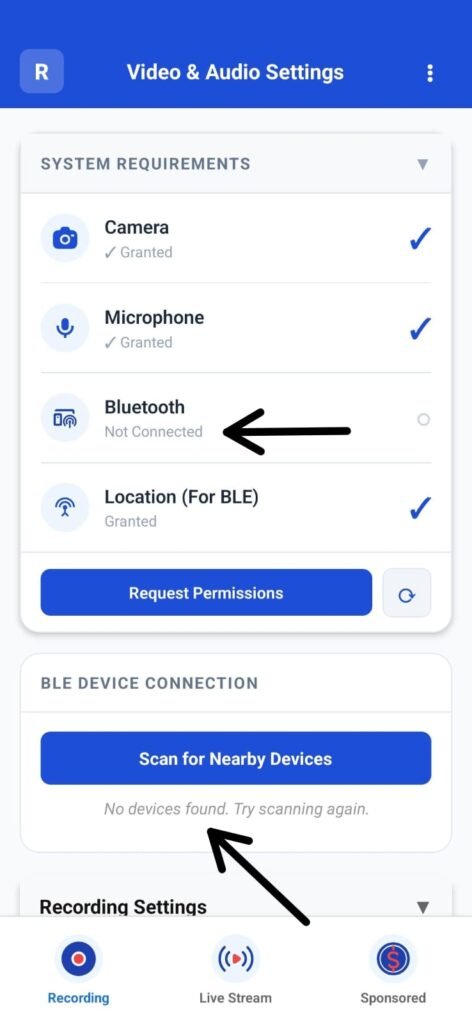
  • Bluetooth shows Not Connected
  • BLE device is not listed as connected

After tapping refresh
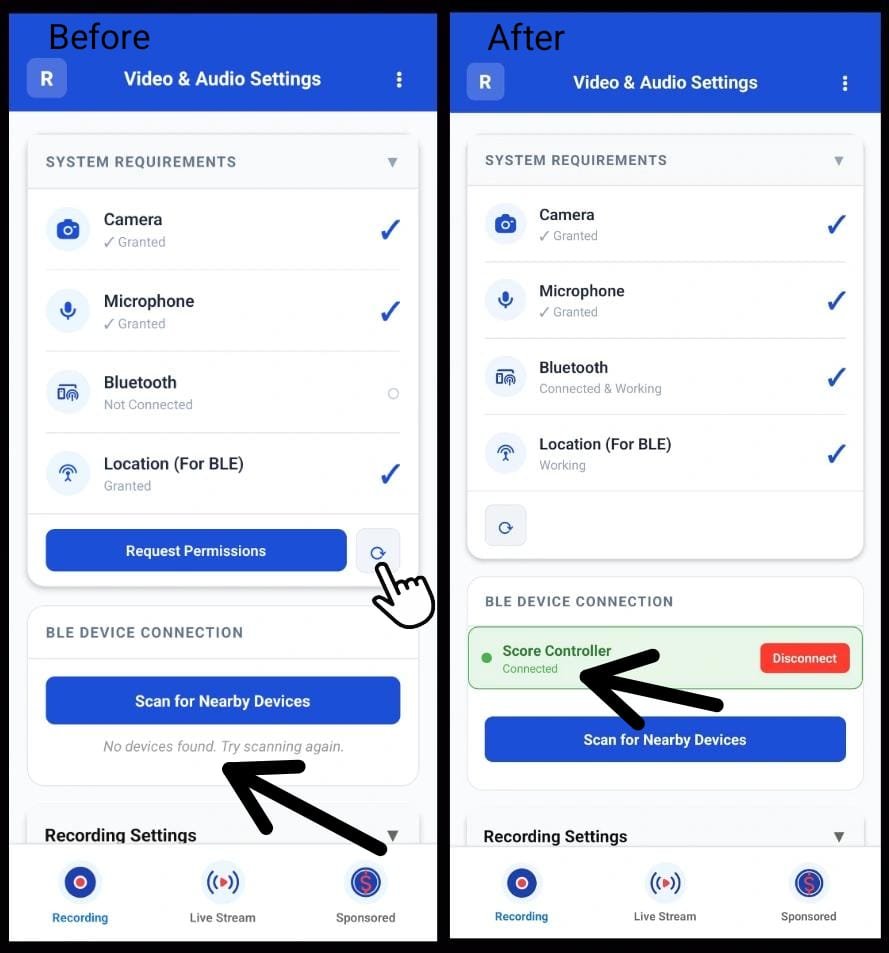
  • Bluetooth status changes to Connected & Working
  • The connected device (e.g., Score Controller) appears under BLE Device Connection
  • A green status indicator confirms successful reconnection

Important Notes #

  • All required permissions (Camera, Microphone, Location) must already be granted.
  • Bluetooth must be turned ON at the system level.
  • If Bluetooth permission was disabled earlier, it must be enabled first before reconnection works.
  • This button does not replace initial pairing — it is only for reconnecting an already paired device.

Why This Feature Matters #

This ensures:

  • Seamless recovery without restarting the app
  • Stable communication between scoring and recording
  • No interruption during live recording or streaming
What are your Feelings

Share This Article :

  • Facebook
  • X
  • LinkedIn
  • Pinterest
Still stuck? How can we help?

How can we help?

Updated on February 10, 2026
Start Recoding – UI InterfaceScoreCast App Overview
Table of Contents
  • BLE Reconnect / Refresh Button
    • Overview
    • When This Is Needed
    • How the Reconnect Button Works
    • What the User Will See
    • Important Notes
    • Why This Feature Matters

Copyright © Clubsmaster all rights reserved.
