Clubsmaster – Real-Time Score Overlay Apps
  • Home
  • Score Overlay
  • Products
    • Clubs Management
    • Fixtures Management
    • Cricket Data Integration
  • Pricing
  • Documentation
  • Contact
  • Home
  • Score Overlay
  • Products
    • Clubs Management
    • Fixtures Management
    • Cricket Data Integration
  • Pricing
  • Documentation
  • Contact
X
Clubsmaster – Real-Time Score Overlay Apps

How can we help you?

One App Every Game

Scorer Controller App

8
  • Scorer App Overview
  • Step 1: Select Your Sport
  • Step 2: Connect Your Bluetooth – BLE Setup (Mandatory)
  • Step 3: Choose Scoring Method
  • Step 4: Team Settings
  • Step 5: Match Settings
  • Step 6: Add Player & Begin your Match
  • How to Score a Match (Ball-by-Ball Scoring Interface)

ScoreCast App

7
  • ScoreCast App Overview
  • Getting Started With ScoreCast
  • Recording Menu – Recoding Configuration
  • Live Stream Menu – Configuration
  • Sponsored Menu – Configuration
  • Start Recoding – UI Interface
  • Ideal Refresh for Record Important Information

Introduction & Getting Started

4
  •  Introduction
  • Quick Start Guide
  • Two-Phone Workflow
  • System Requirements & Compatibility

Web App (app.clubsmaster.com)

9
  • Web App Overview
  • Choosing a Plan
  • Creating an Account (Signup)
  • Logging In
  • Dashboard Overview
  • Billing & Plans
  • Team & Member Management (Club Plan)
  • Account & Settings
  • Support & FAQs
  • Home
  • Docs
  • Android Apps (Scorer & Recorder App)
  • ScoreCast App
  • Start Recoding – UI Interface
View Categories

Start Recoding – UI Interface

1 min read

Recording Using ScoreCast #

Overview #

ScoreCast allows users to record matches directly from the app, with optional live streaming. The recording process is designed to be simple, guided, and permission-aware to ensure smooth operation.

Accessing the Recording Feature #
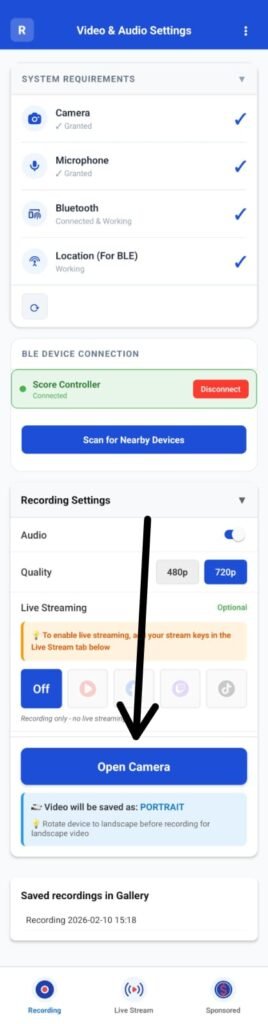
  • Open the Video & Audio Settings screen
  • Tap on Open Camera
  • You will be redirected to the Recording Screen

Starting a Recording #
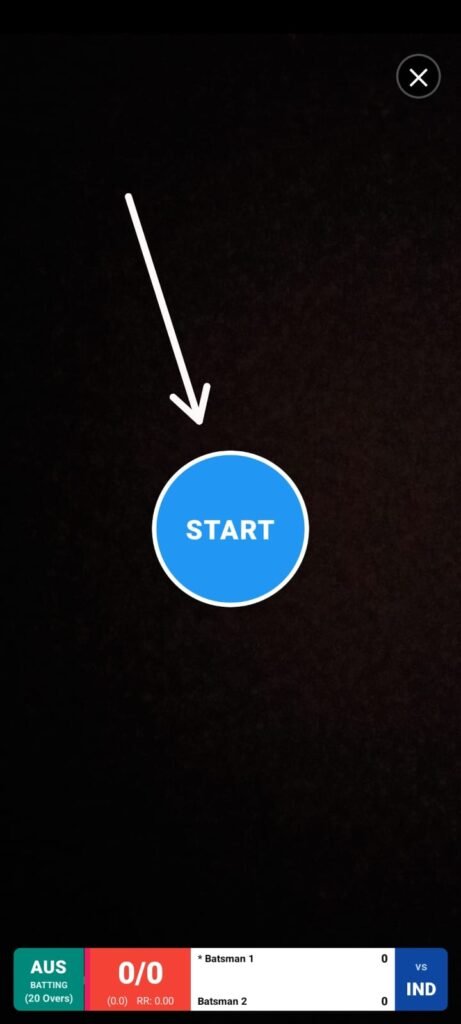
  • On the Recording Screen, a blue circular Start button is displayed
  • Tap the Start button to initiate recording
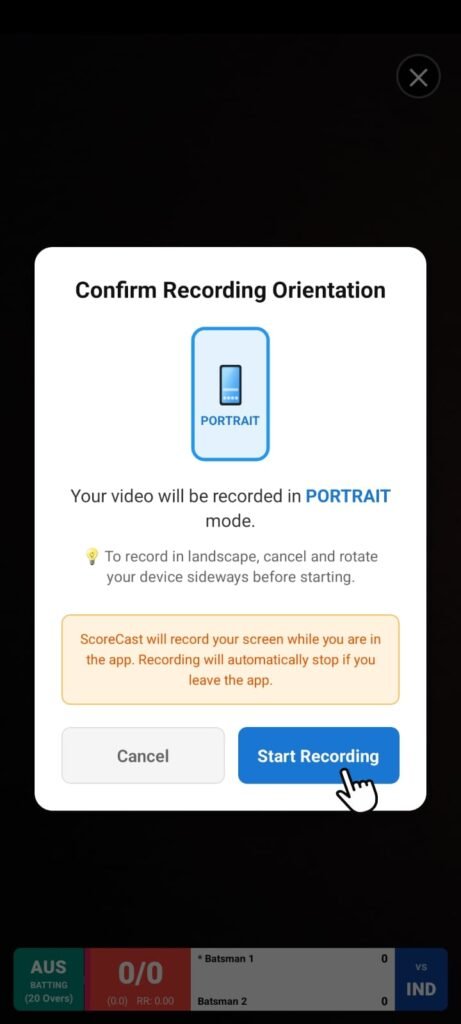
  • A popup appears asking to Confirm Recording Orientation
  • Review the orientation and tap Start Recording

Permission Handling During Recording #
  • If any permissions are required (Camera, Microphone, Storage, etc.), the system will prompt you
  • Allow all requested permissions to continue
  • Once permissions are granted, the recording begins automatically

Recording Behavior #

  • Recording starts immediately after permissions are approved
  • The app continues recording in the foreground as long as the session is active
  • If live streaming is enabled, recording and streaming run simultaneously

Important Notes #

  • If permissions are denied, recording will not start
  • Users must manually grant permissions from system prompts or app settings
  • Bluetooth permission may remain disabled initially and must be enabled separately if required for external devices

Best Practices #

  • Ensure all required permissions are enabled before starting a recording
  • Confirm the correct orientation before tapping Start Recording
  • Avoid switching apps during recording to prevent interruptions

Summary (For Users) #

  • Open Video & Audio Settings
  • Tap Open Camera
  • Tap the blue Start button
  • Confirm orientation and start recording
  • Allow permissions when prompted
  • Recording begins
What are your Feelings

Share This Article :

  • Facebook
  • X
  • LinkedIn
  • Pinterest
Still stuck? How can we help?

How can we help?

Updated on February 10, 2026
Sponsored Menu – ConfigurationIdeal Refresh for Record Important Information
Table of Contents
  • Recording Using ScoreCast
    • Overview
    • Accessing the Recording Feature
    • Starting a Recording
    • Permission Handling During Recording
    • Recording Behavior
    • Important Notes
    • Best Practices
    • Summary (For Users)

Copyright © Clubsmaster all rights reserved.
