2. Live Stream Settings #
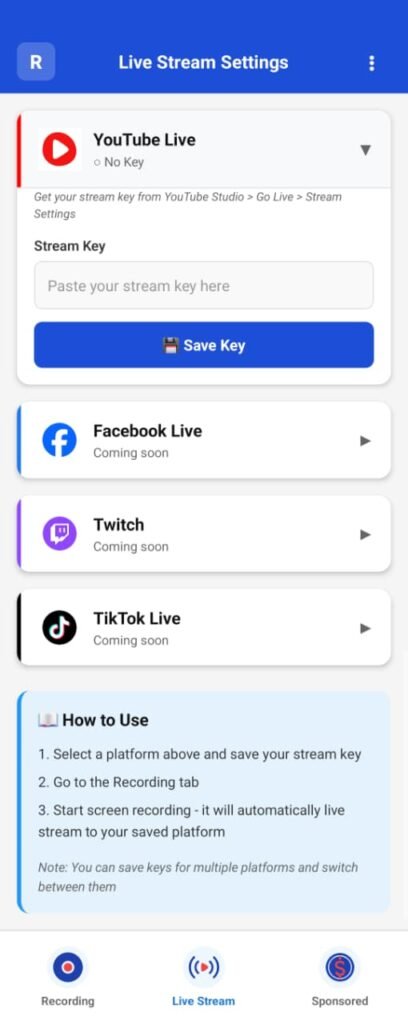
The Live Stream Settings section allows users to broadcast recordings in real time while simultaneously capturing the video locally on the device.
Live streaming is optional. If not configured, ScoreCast will function purely as a recording application.
Supported Live Streaming Platforms #
ScoreCast currently supports the following platforms:
- YouTube Live (Available)
- Facebook Live (Coming Soon)
- Twitch (Coming Soon)
- TikTok Live (Coming Soon)
Only platforms marked as Available can be used for live streaming at this time.
YouTube Live Setup #
To enable YouTube Live streaming:
- Select YouTube Live from the platform list
- Enter the Stream Key generated from your YouTube Studio account
- Ensure the stream key is valid and active
The stream key links ScoreCast directly to your YouTube Live channel.
Note: Stream keys are provided by YouTube and must be created in advance from YouTube Studio.
Stream Key Management #
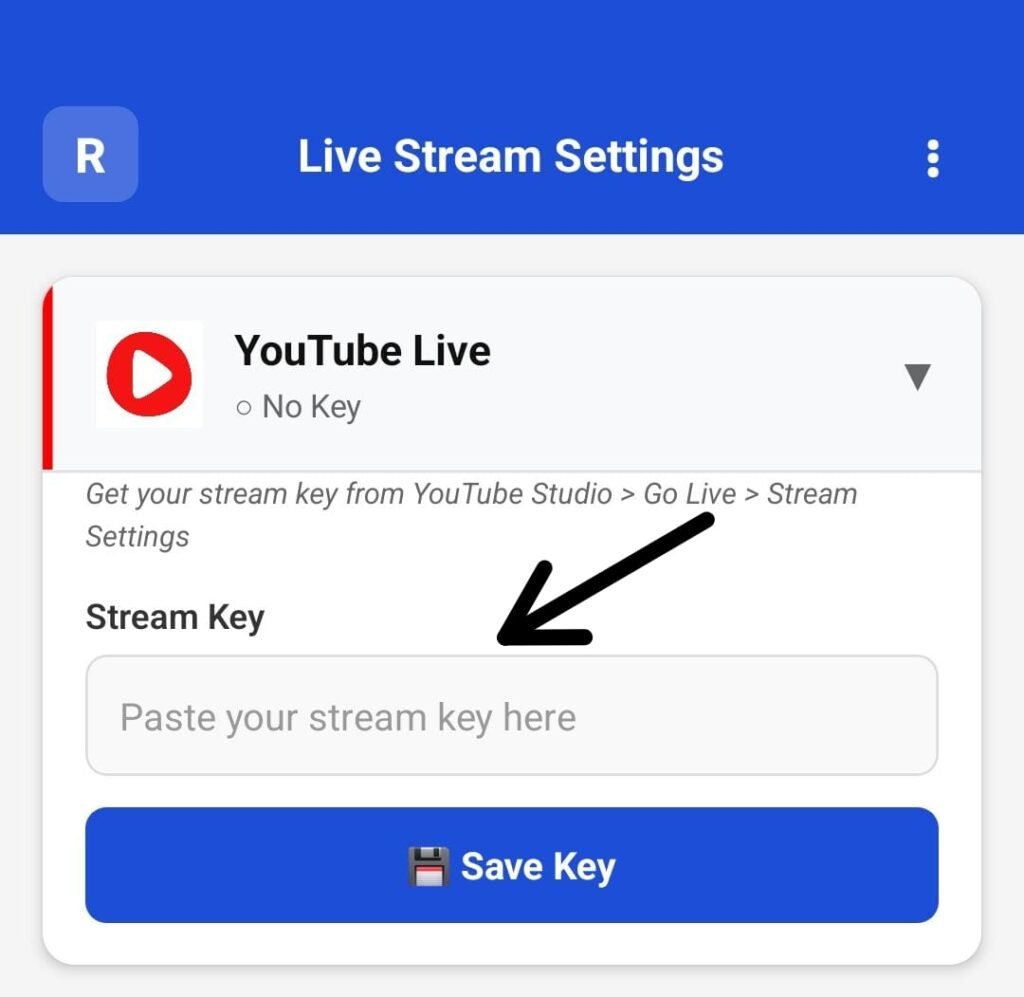
ScoreCast allows you to:
- Save stream keys for future use
- Switch between platforms (once additional platforms are supported)
- Update or replace an existing stream key at any time
Stream keys are stored securely within the app for quick access during future sessions.
Saving & Switching Platforms #
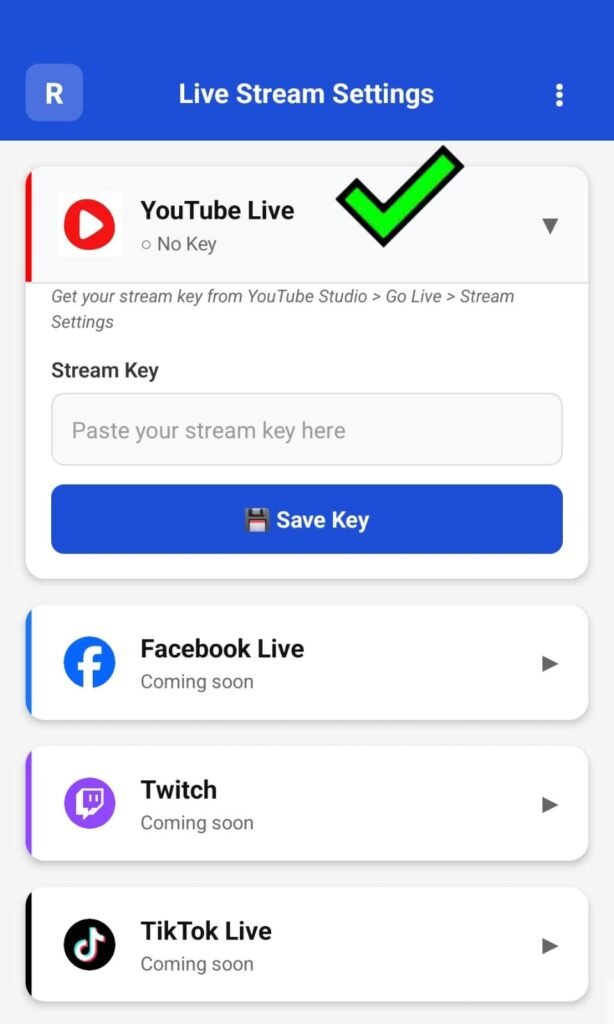
Once a platform and stream key are saved:
- The selected platform becomes the active streaming destination
- Switching platforms requires selecting a different platform and entering its stream key
- Only one platform can be active per recording session
How Live Streaming Works with Recording #
When live streaming is enabled:
- Video is streamed live to the selected platform
- The same session is recorded locally on the device
- Score overlays received from the Score Controller app appear:
- In the live stream
- In the recorded video
If live streaming is disabled:
- ScoreCast records video locally only
- No data is sent to external platforms
This ensures recording always functions independently of streaming status.


