1. Video & Audio Settings #
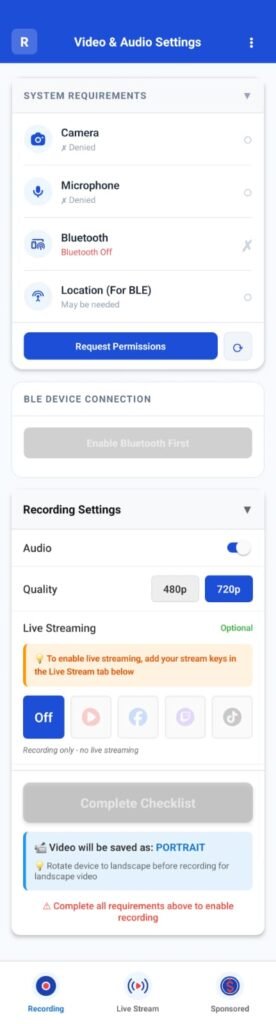
The Video & Audio Settings screen is the core configuration page in ScoreCast.
This page ensures all required permissions, device connections, and recording preferences are correctly set before recording or live streaming begins.
System Requirements & Permissions #
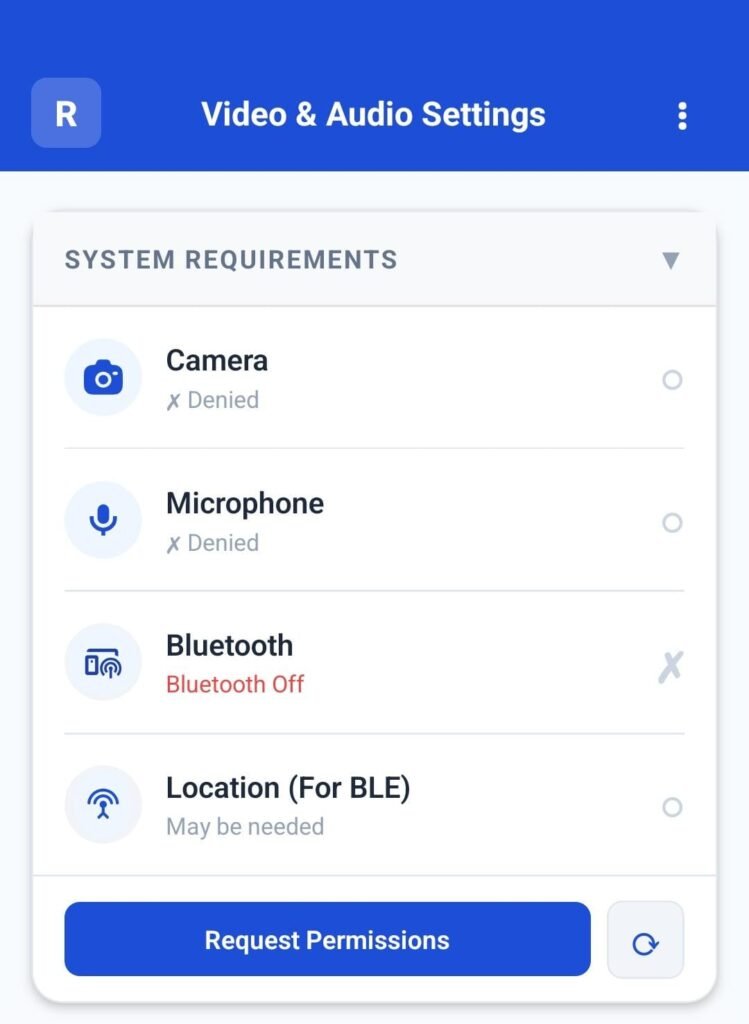
At the top of the screen, ScoreCast displays System Requirements, which verify whether all mandatory permissions are enabled.
These include:
- Camera
- Microphone
- Bluetooth
- Location (required for BLE device discovery)
Initially, these permissions may appear as Denied or Off.
Request Permissions #
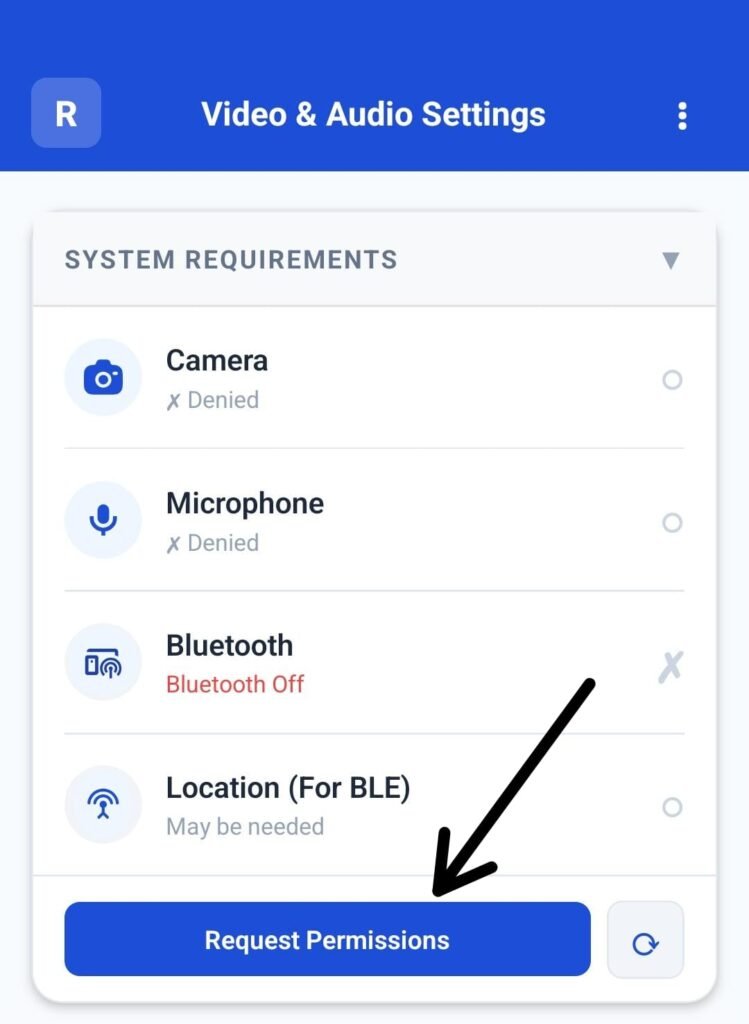
Tap the Request Permissions button to begin granting permissions.
ScoreCast will request permissions one by one, exactly in the following order:
1. Camera Permission #
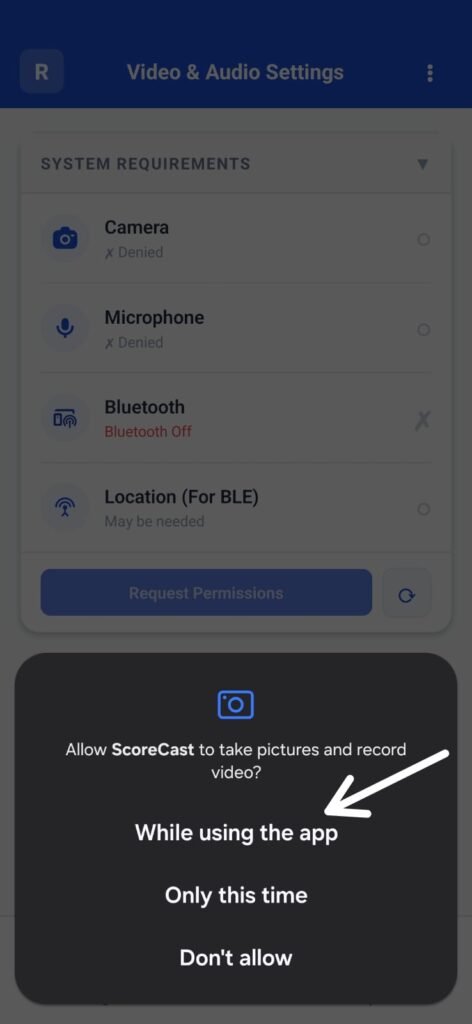
A system popup appears:
“Allow ScoreCast to take pictures and record video?”
Select:
- While using the app
This enables camera access for video recording and preview.
2. Location Permission (For BLE) #
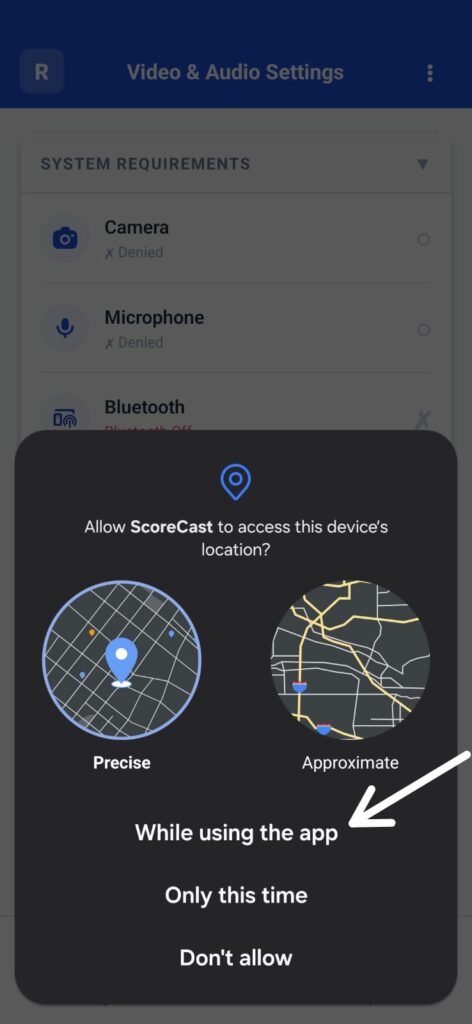
Next, a location permission popup appears:
“Allow ScoreCast to access this device’s location?”
Choose:
- While using the app
- Location accuracy can be Precise or Approximate (either is acceptable)
This permission is required by Android to discover nearby Bluetooth Low Energy (BLE) devices.
3. Microphone Permission #
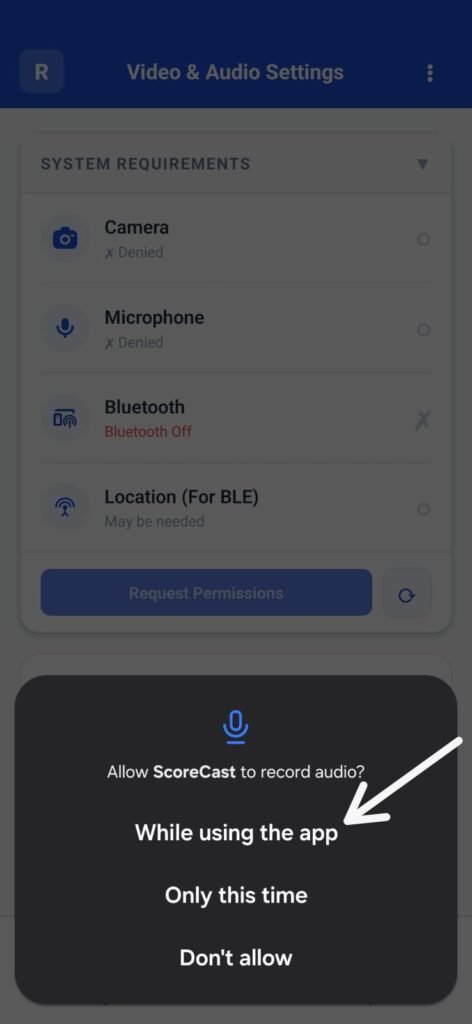
Next, the audio permission popup appears:
“Allow ScoreCast to record audio?”
Select:
- While using the app
This allows ScoreCast to capture commentary and ambient sound during recording or streaming.
4. Bluetooth Permission #
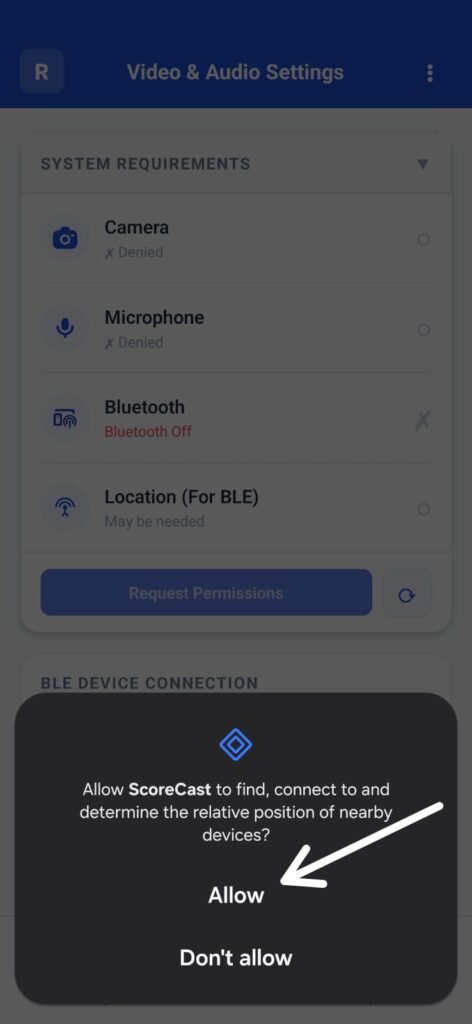
Finally, the Bluetooth permission popup appears:
“Allow ScoreCast to find, connect to, and determine the relative position of nearby devices?”
Tap:
- Allow
This enables ScoreCast to connect with the Score Controller (Scorer App) using BLE.
Permission Status Check #
After completing these steps:
- Camera → Granted
- Microphone → Granted
- Location → Granted
- Bluetooth → May still show Bluetooth Off
If Bluetooth is OFF, a warning dialog may appear:
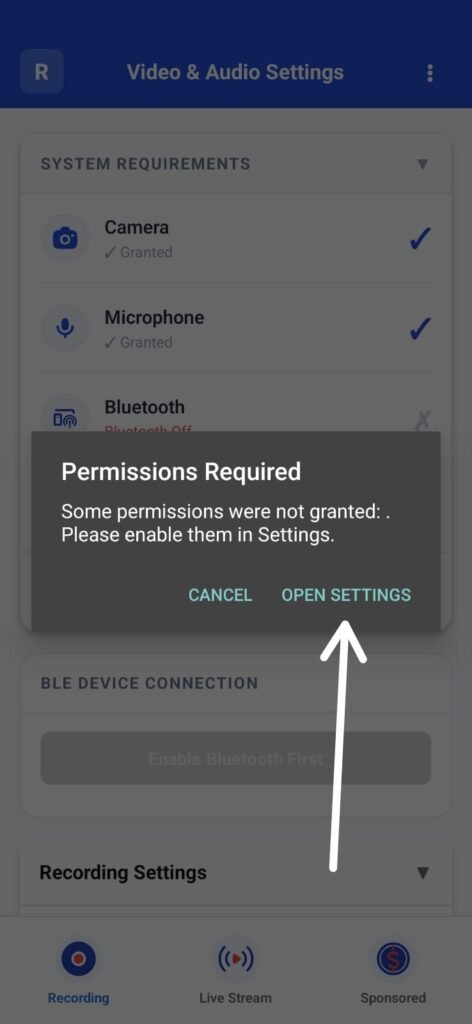
Permissions Required Popup #
When some required permissions are missing, ScoreCast shows this alert:
Permissions Required – Some permissions were not granted. Please enable them in Settings.
What you can do #
You have two options:
Option 1: Open Settings #
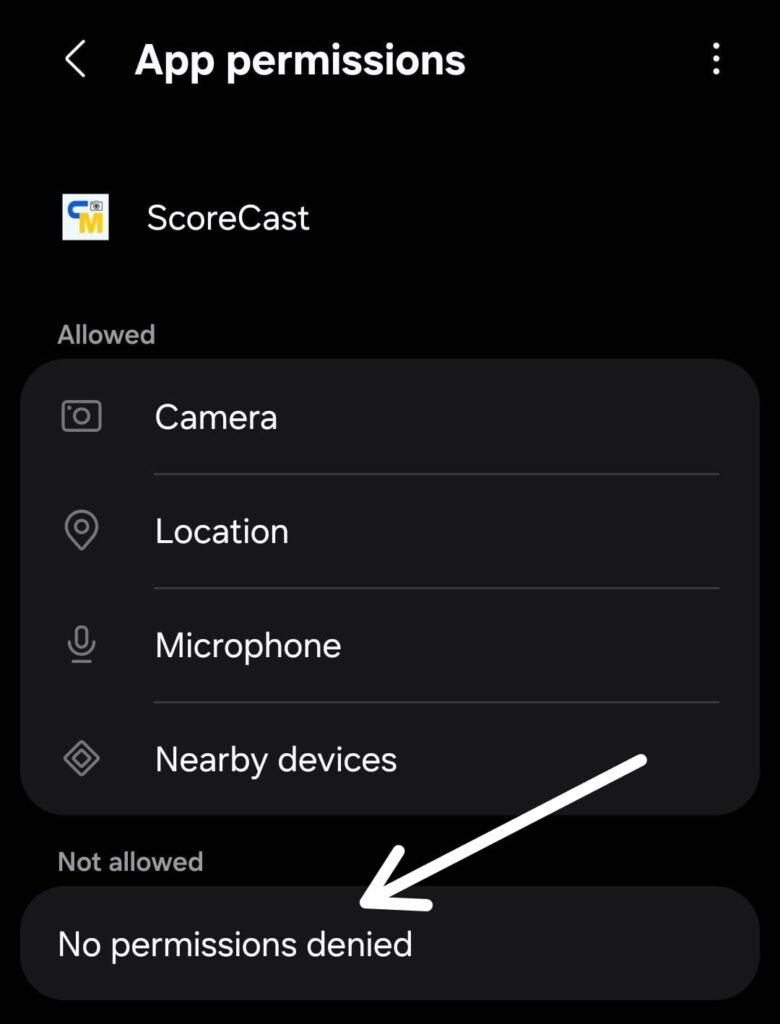
- Tap Open Settings
- This takes you to the ScoreCast App Info page
- Check that all required permissions are enabled
(Camera, Microphone, Location, Bluetooth access) - Make sure no permission is denied
- Return to the ScoreCast app
Important:
Even if permissions are enabled here, Bluetooth may still be OFF.
You must turn Bluetooth ON from your device’s system settings, then return to ScoreCast.
Option 2: Cancel #
- Tap Cancel
- This closes the popup
- You return to the app without changing any settings
Note: If you choose Cancel and permissions are still missing, recording and live streaming will not work until they are enabled.
Enable Bluetooth (Mandatory) #
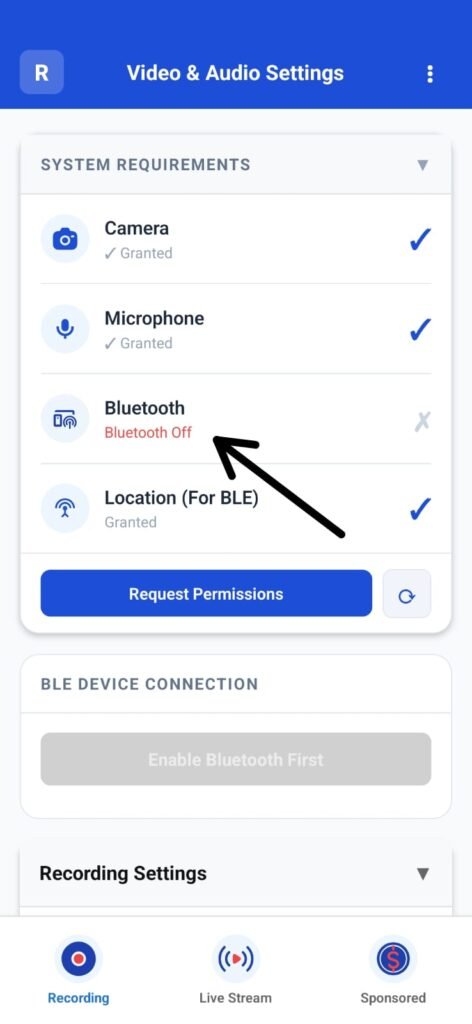
To proceed:
- Tap the Bluetooth row in the System Requirements section
- You will be redirected to your device’s Bluetooth settings
- Turn Bluetooth ON
- Return to the ScoreCast app
Once enabled, the Bluetooth status updates correctly.
BLE Device Connection #
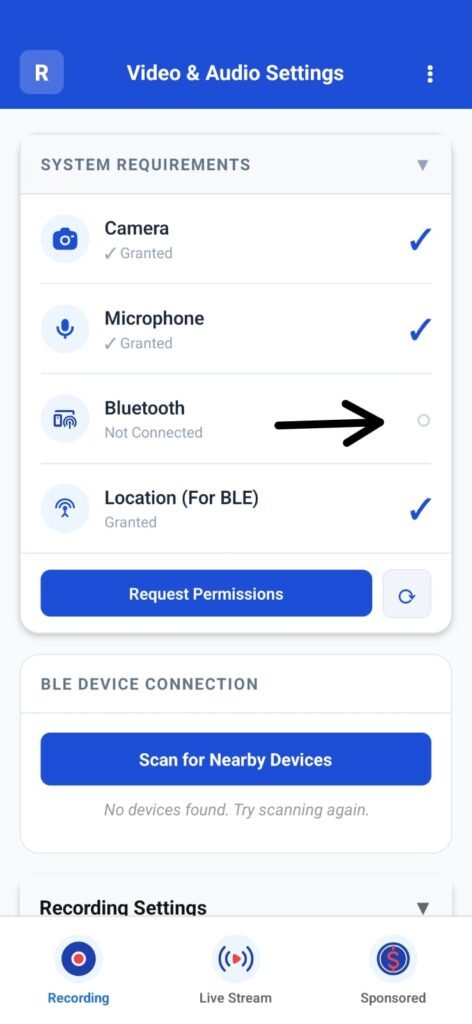
After Bluetooth is enabled, the BLE Device Connection section becomes active.
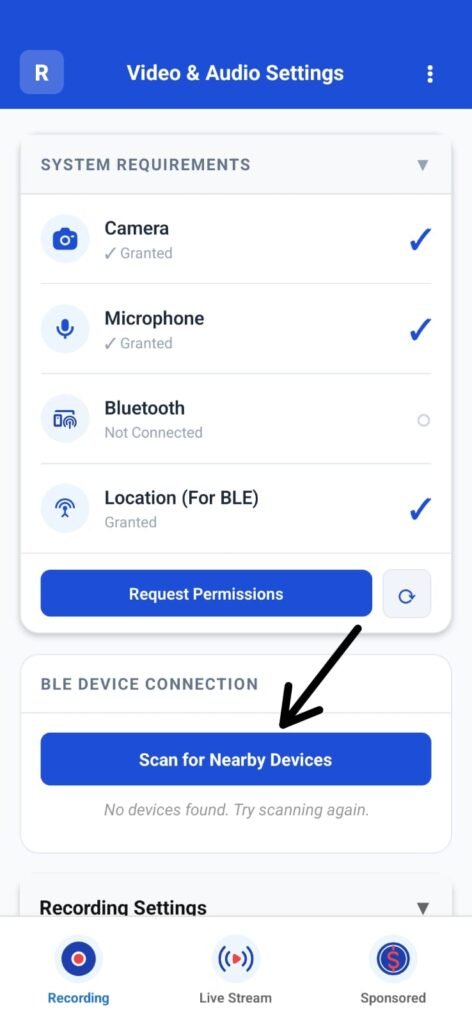
- Tap Scan for Nearby Devices
- ScoreCast searches for available BLE devices
- If the Score Controller app is running on another device with BLE broadcasting enabled, it will appear in the list
- Select the Score Controller device
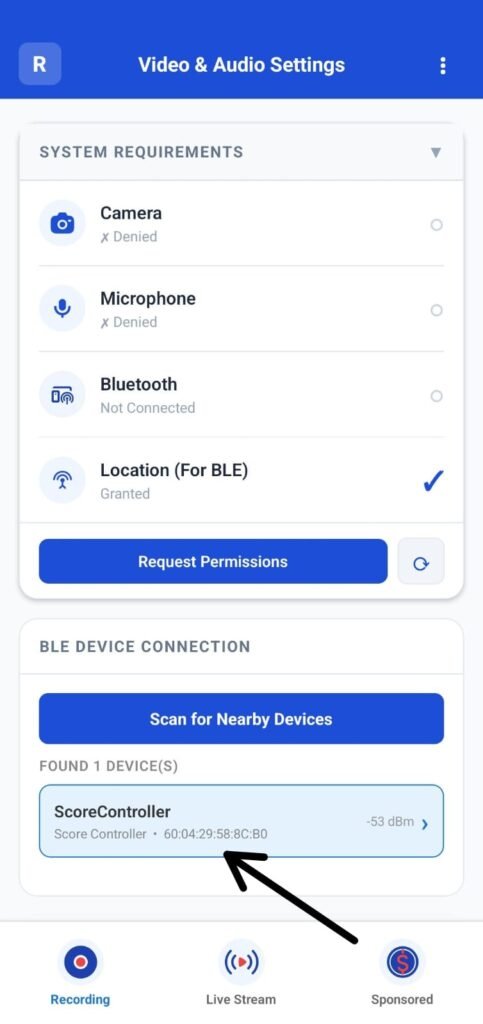
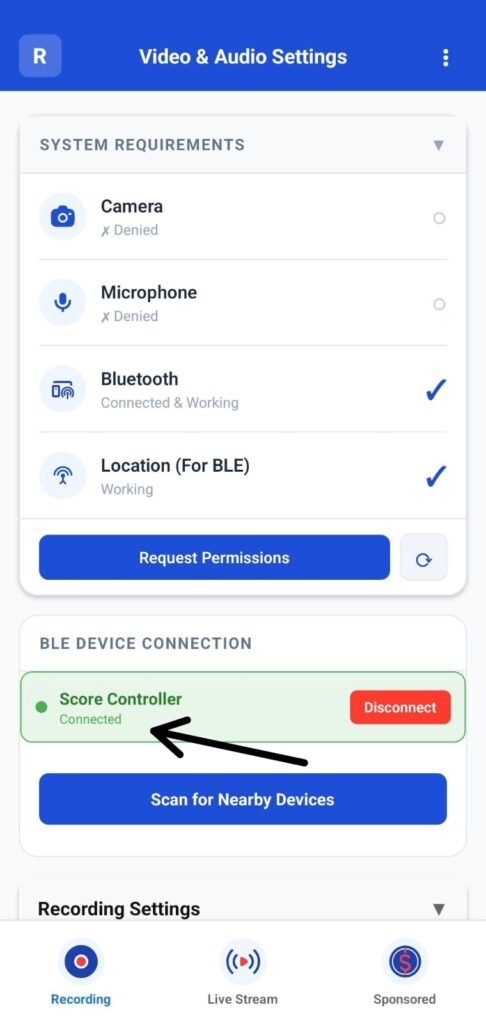
Once selected, both apps are successfully connected.
This connection allows live score overlays to be transmitted from the Scorer app to ScoreCast during recording or streaming.
Recording Settings #
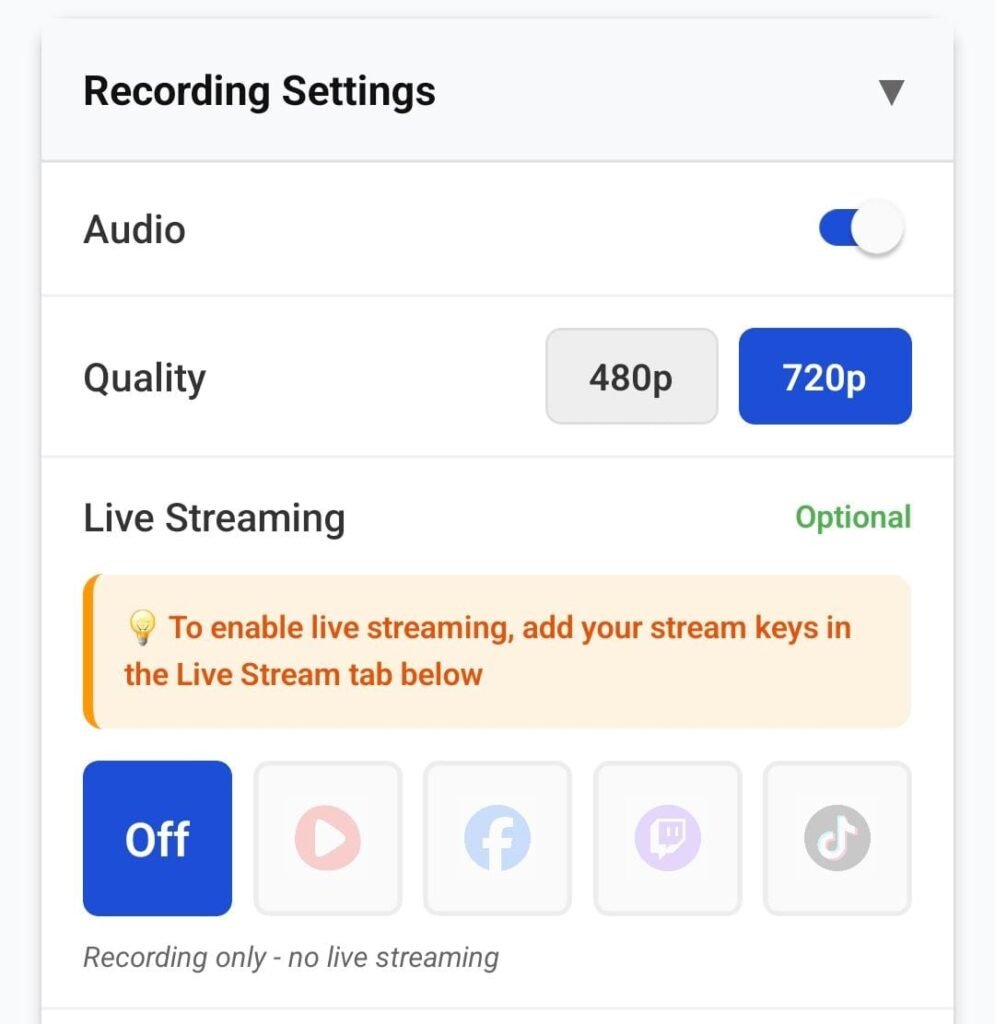
Below the system requirements, the Recording Settings section allows you to configure output preferences:
- Audio: Enable or disable microphone audio
- Quality: Select video resolution (e.g., 480p or 720p)
- Live Streaming (Optional):
- If OFF → Recording only
- To enable live streaming, stream keys must be added in the Live Stream tab
Orientation Notice #
At the bottom, ScoreCast displays the current video orientation:
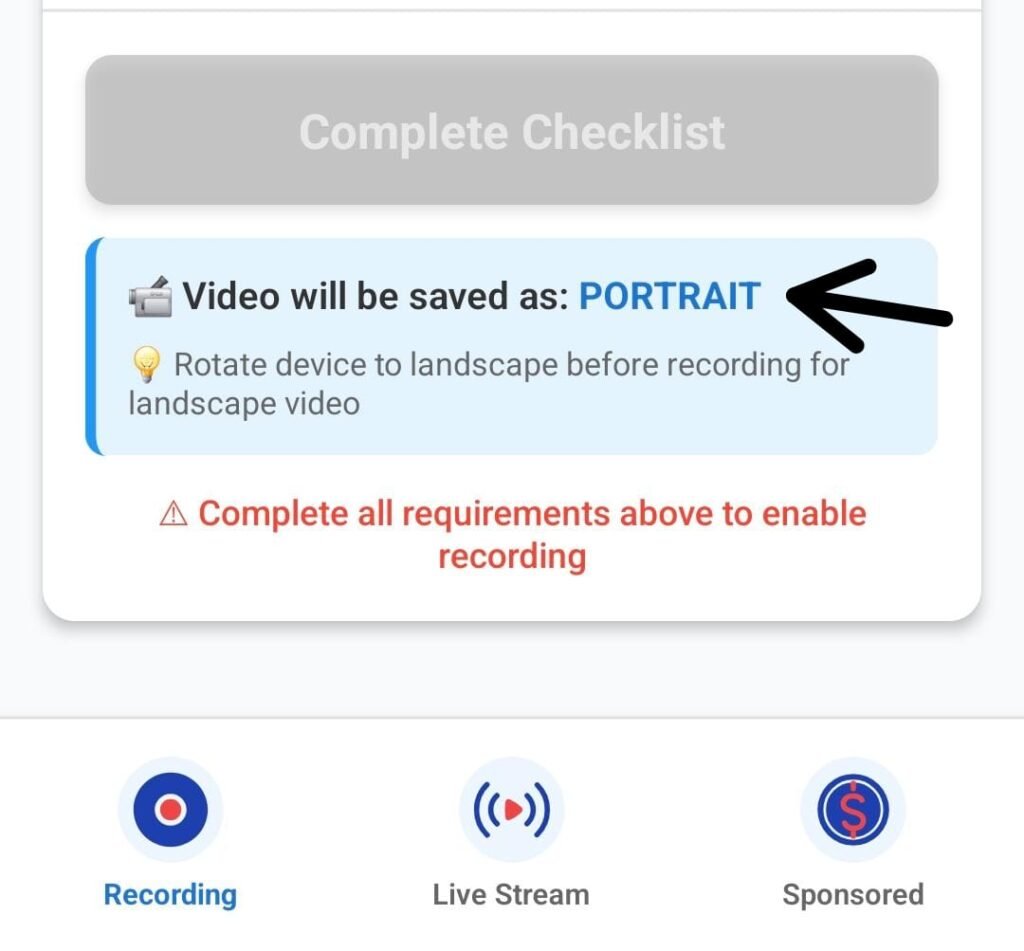
- Portrait or Landscape
Rotate your device before starting recording if landscape output is required.
Completion Requirement #
Recording cannot start until:
- All mandatory permissions are granted
- Bluetooth is enabled
- BLE device connection is completed (if score overlays are required)
Once everything is correctly configured, the checklist completes and recording is enabled.


